Discord Stuck on RTC Connecting: How to Fix It
Fix Discord stuck on RTC Connecting with practical checks for your network, VPN, DNS, firewall, voice settings, router, drivers, and Discord connection issues.
On this page
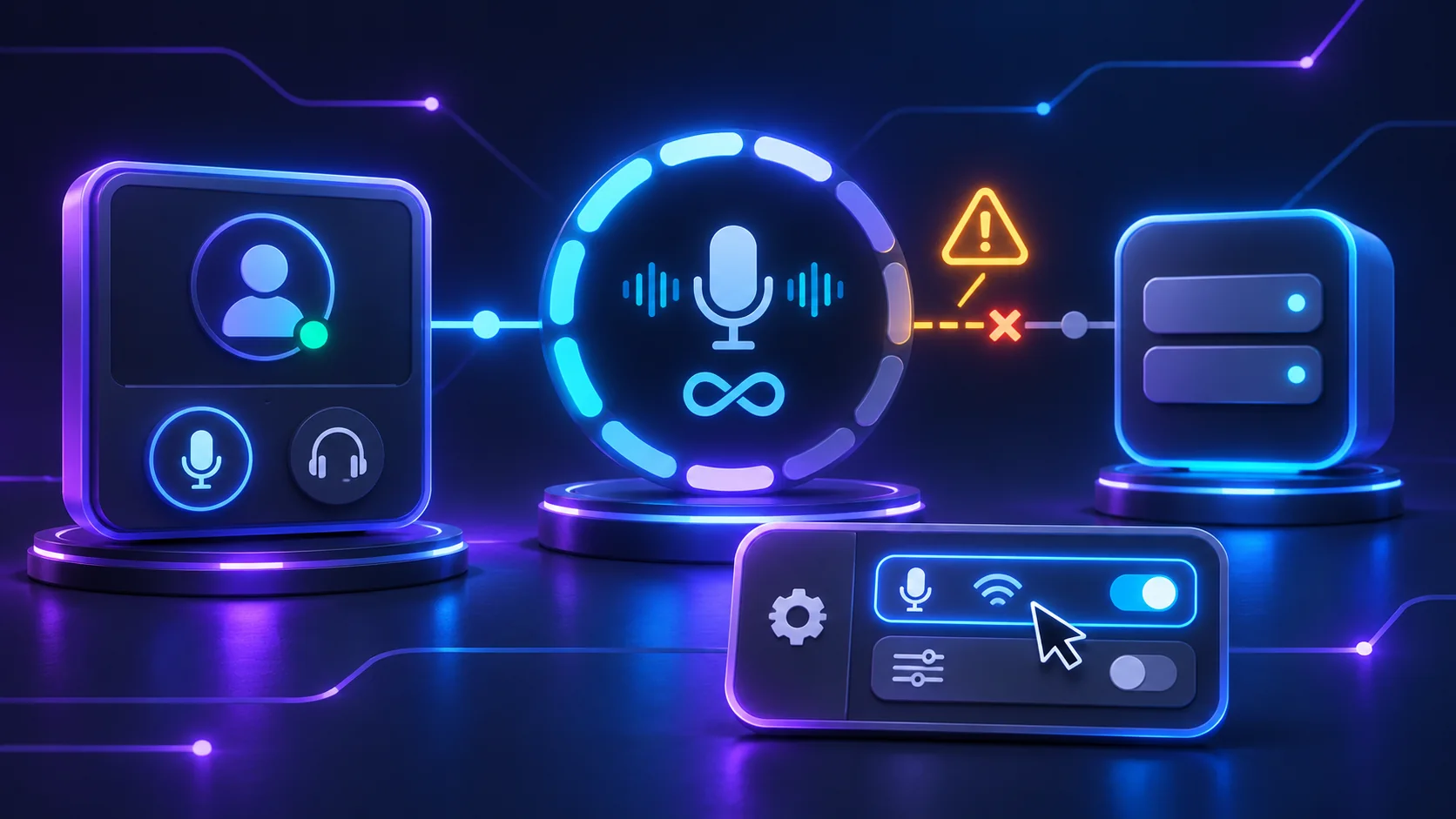
RTC Connecting means Discord is trying to establish the real-time connection for a voice call but has not completed it. Text chat and ordinary websites may still work because voice traffic follows a different connection path.
The cause varies. A temporary voice session, outage, VPN or proxy, firewall, restrictive network, router, DNS, or local Discord setting can be involved. Test after each change.
Quick Checks First
- Leave the voice channel, wait a few seconds, and rejoin it.
- Fully quit Discord and reopen it.
- Check Discord Status for a voice or connection incident.
- Restart the computer or mobile device.
- Try a different voice channel, server, or direct call.
- Pause a personal VPN or unintended proxy for one test.
- Compare another trusted network if one is available.
If voice connects but nobody can hear you, the connection has completed and the Discord Mic Not Working guide is the better next step.
1. Leave and Rejoin the Voice Channel
Disconnect, wait briefly, and join again. This asks Discord to start a fresh voice session and can clear a temporary attempt that stalled during channel entry or a brief network change.
If one channel remains stuck, test another channel or direct call. Note whether the problem follows one channel, one server, or every voice destination.
2. Restart Discord Completely
Closing the visible window may leave the desktop client running. Quit Discord from the Windows notification area or macOS menu bar, then reopen it. On Windows, use Task Manager only if Discord is unresponsive, and end only Discord processes you recognize.
A full restart clears the current connection attempt and lets the client update. If the error returns immediately, continue instead of repeatedly restarting.
3. Check Discord’s Official Status
Open Discord Status and look for an active incident or degraded service affecting voice, connections, or the client you use. Discord’s official Voice Connection Errors guide identifies RTC Connecting as one of its voice connection error states.
During a relevant outage, local changes may not help. Wait for the status update and test later rather than reinstalling Discord or changing the router.
4. Restart Your Computer or Device
Save your work and restart normally. This can end a stuck Discord process, apply pending updates, and rebuild ordinary network state without changing configuration.
Restart after switching networks, installing a VPN, updating Discord, or waking from a long sleep. Test before deeper network changes.
5. Restart the Router or Modem
For a home network you control, use the router’s normal restart option or an ordinary power cycle. Warn other users, wait until the connection is fully restored, and confirm a website loads before testing Discord voice.
Do not press a recessed factory-reset button. A factory reset can erase internet, Wi-Fi, and provider settings and is not justified for this symptom.
6. Test Another Trusted Network
If practical, compare a mobile hotspot or another trusted Wi-Fi connection. Remember that a hotspot may use mobile data. This test changes the router, network policy, and upstream route while keeping the same Discord account and device.
If voice works elsewhere, focus on the original network or router. If it fails everywhere, a client, device, account, or Discord service issue is more likely.
7. Disable a VPN or Proxy Temporarily
A VPN or proxy changes the path between Discord and its voice service. Discord says a VPN used for voice must support UDP, and some VPN routes or filters may still perform poorly.
Pause a personal VPN for one test and remove only an unintended proxy. If voice connects, restore the VPN and consult its provider about UDP and real-time traffic. Do not alter a managed proxy or use obfuscation to bypass school or workplace rules.
8. Check Firewall and Security Software
Keep protection enabled. Review firewall or security logs for a recent Discord block, then verify that the official Discord client is allowed on the appropriate network profile. Microsoft notes that allowing a trusted app is safer than opening ports.
Do not disable the firewall globally, approve an unfamiliar executable, or create broad port rules. For third-party security software, use its documented app permission or allowlist and restore any temporary diagnostic change that does not help.
9. Check Whether the Network Blocks Voice Traffic
School, workplace, hotel, guest, and public networks may restrict real-time voice or UDP-like traffic even while web browsing works. A restrictive home router, parental control, or security filter can have a similar effect.
If another trusted network works, ask whether Discord voice is permitted. Do not install tunneling tools or bypass managed restrictions. At home, review only settings you recognize using the router manufacturer’s documentation.
10. Review Discord Voice Settings
Open Discord’s Voice & Video settings and confirm the intended input and output devices. These device choices usually do not cause RTC Connecting, but checking them prevents a successful connection from appearing broken because audio is routed elsewhere.
Discord’s current Voice and Video Troubleshooting Guide also documents a Quality of Service high-packet-priority control for connection checks. If the current client shows it, note its original state, switch it off for one test, and restore it if nothing changes.
11. Reset Discord Voice Settings
Discord currently provides Reset Voice and Video Settings in the debugging area of Voice & Video settings. Before using it, note your selected devices, input mode, volumes, and any custom voice choices.
Run the reset once, rejoin the channel, and restore only the settings you need. It resets Discord’s local voice and video configuration; it cannot fix an outage, blocked network, or router failure.
12. Check Automatic Voice Region Behavior
Discord normally selects a voice region automatically. For a problem limited to one voice channel, a server administrator with the appropriate permission can temporarily test the channel’s current Region Override control and then return it to Automatic if there is no improvement.
Discord still documents this option in its Voice Connection Errors guidance. Do not change several channels or assume region is the cause when every server fails.
13. Compare Discord Web and Desktop
Try the same account and voice destination in discord.com through a current supported browser. Allow microphone access if prompted. If web works but desktop stays stuck, focus on the desktop client, its cache, update state, or security approval.
If both fail on the same network, a network or service issue is more likely. If desktop works but the browser fails, review browser permission and site-specific filtering.
14. Check DNS Carefully
DNS converts service names into network addresses. A stale or failing resolver can sometimes interfere with reaching a Discord service, but changing DNS will not repair a blocked voice path, incompatible VPN, or outage.
Only test a well-known public DNS provider if name resolution is also unreliable or your network administrator recommends it. Discord’s current DNS guidance recommends Google Public DNS or Cloudflare 1.1.1.1. Record the original setting, follow the provider’s current instructions, and restore it if the comparison makes no difference. Do not install an unknown DNS utility.
15. Flush the Windows DNS Cache
If Windows recently showed name-resolution errors, open Command Prompt and run:
ipconfig /flushdnsMicrosoft documents that this clears the local DNS resolver cache. It does not change the router’s DNS, open voice traffic, or reset the network adapter, so treat it as a narrow diagnostic rather than a guaranteed fix.
16. Renew the Network Connection Carefully
Disconnect and reconnect Wi-Fi, or unplug and reconnect Ethernet if practical. This requests a fresh ordinary connection without running an aggressive command sequence. On a phone, toggle Wi-Fi off and on once.
Leave managed or intentionally static network settings alone. Avoid random Winsock scripts, registry edits, or a full network reset for a Discord-only symptom; those changes can disrupt VPNs, virtual adapters, and saved network configuration.
17. Update the Network Adapter Driver
Use Windows Update first. If the adapter manufacturer or computer maker offers a relevant driver, use its official support page for the exact model. Microsoft’s driver guidance recommends Windows Update or the manufacturer and warns against third-party driver sites.
Restart if the update requests it, then retest. Do not remove unrelated adapters or install a driver intended for another model.
18. Run Windows Network Diagnostics
If Windows also shows broader connectivity trouble, open the Get Help app and run its Network and Internet diagnostics. Microsoft’s Windows network guidance treats diagnostics as an early, optional check.
Review each proposed change before accepting it. Skip a destructive network reset unless broader connection problems justify it and you understand what will be removed.
19. Clear Discord Cache Only for an App-Specific Problem
If Discord web works on the same device and network but desktop Discord does not, stale local data may be involved. Follow the How to Clear Discord Cache guide and remove only Discord’s documented cache data.
Cache cleanup cannot unblock a firewall or managed network. Do not delete all of AppData, a whole Library folder, or unrelated application data.
20. Reinstall Discord as the Final App-Level Step
When the problem remains desktop-only after updates, settings reset, and cache cleanup, uninstall Discord through the operating system’s normal app controls. Restart, then download the current installer only from Discord’s official download page.
Reinstalling the client does not delete your Discord account, servers, channels, or cloud-stored messages, but make sure you can sign in again. It will not fix a network that deliberately blocks voice.
Discord RTC Connecting Only on One Server
Test another channel in that server and ask whether another member can join the affected channel. One-channel failure can reflect a temporary channel or voice-region problem; one-server failure may also involve your channel permissions or that server’s configuration.
Ask an administrator to review the channel and, if appropriate, test its documented region override. Do not change local DNS or drivers first when voice works everywhere else.
Discord RTC Connecting on Every Server
Failure across servers, direct calls, and channels more strongly points toward your network, VPN or proxy, firewall, Discord client, or a broader Discord service issue. Check Discord Status, compare another network, and test web against desktop.
If another device also fails on the same network but works elsewhere, focus on that network rather than reinstalling every client.
Discord RTC Connecting When Using a VPN
Pause the VPN and repeat the same channel test. If Discord connects without it, the VPN’s routing, filtering, server load, or UDP support is the useful lead. Try only supported settings or another normal server offered by the provider.
Do not use VPN obfuscation to defeat a managed network policy. If the VPN is required by work or school, ask its administrator whether Discord voice is supported.
Discord RTC Connecting on School or Work Wi-Fi
Managed networks may intentionally restrict real-time voice traffic. Tell the administrator that Discord text works but voice remains at RTC Connecting, and provide the time, device, client, and channels tested.
Use an allowed network or wait for the administrator’s answer. Do not change managed firewall, proxy, DNS, or VPN settings and do not attempt to bypass the restriction.
Discord RTC Connecting but the Internet Works
Normal browsing confirms only that some internet traffic works. Discord voice uses a real-time connection that can be affected by a different route, UDP handling, firewall rule, VPN, or network policy.
Compare Discord Status, another voice destination, and another trusted network. A successful hotspot test narrows the issue to the original network but does not identify one specific device or rule by itself.
RTC Connecting vs No Route
Discord groups both labels among voice connection errors but does not publish a precise user-facing technical boundary between them. RTC Connecting is shown while the client is trying to establish the real-time session; No Route is another failed-connection state. Neither label proves one universal cause.
Use the same safe network comparisons first. If the client changes to No Route, continue with the focused Discord No Route Error guide.
Frequently Asked Questions
What does RTC Connecting mean on Discord?
Discord is attempting to establish the real-time voice connection but has not completed it. The label does not identify one specific cause.
Why is Discord stuck on RTC Connecting?
A temporary session, outage, VPN, proxy, firewall, restricted network, router problem, DNS issue, or local client state may interfere. Compare channels, clients, and networks to narrow it down.
Can a VPN cause RTC Connecting?
Yes. Discord says VPN voice connections require UDP support, and VPN routing or filtering can still interfere. Pause the VPN for one diagnostic comparison.
Can a firewall block Discord voice?
Yes. Keep the firewall enabled, review its logs, and allow only the official Discord client if it was blocked. Do not open broad port ranges.
Why does RTC Connecting happen only on one server?
The affected voice channel, permissions, region selection, or a temporary server-side issue may differ. Test another channel and ask a server administrator to review it.
Why does Discord voice fail while my internet still works?
Web browsing and real-time voice do not use exactly the same connection path. A VPN, firewall, route, or network policy can affect voice while websites still load.
Does changing DNS help Discord RTC Connecting?
Only in some name-resolution cases. It cannot fix most firewall, VPN, route, or outage problems, so restore the original setting if a careful test does not help.
What is the difference between RTC Connecting and No Route?
Discord groups both as voice connection errors without defining a precise user-facing technical boundary. RTC Connecting is shown during the attempt; No Route is another failed-connection state.
Can school or work Wi-Fi block Discord voice?
Yes. Managed networks may intentionally restrict real-time voice traffic. Use an allowed network or contact the administrator rather than trying to bypass the policy.
Should I reinstall Discord if RTC Connecting never finishes?
Only after the problem is isolated to the desktop app and simpler checks fail. Reinstalling cannot repair an outage or blocked network, and it does not delete account or server data.
Related guides
Continue with another practical explanation from the guide index.
Discord Sound Not Working: How to Fix It
Fix Discord sound not working with practical checks for output devices, Windows volume settings, muted channels, audio drivers, browser permissions, and Discord voice settings.
Discord Camera Not Working: How to Fix It
Fix your Discord camera not working with practical checks for camera permissions, device selection, other apps using the webcam, drivers, Windows, macOS, and Discord settings.

Discord Notifications Not Working: How to Fix It
Fix Discord notifications not working on desktop or mobile with practical checks for notification settings, muted servers and channels, Windows, Android, iPhone, and Discord app issues.