Discord Sound Not Working: How to Fix It
Fix Discord sound not working with practical checks for output devices, Windows volume settings, muted channels, audio drivers, browser permissions, and Discord voice settings.
On this page
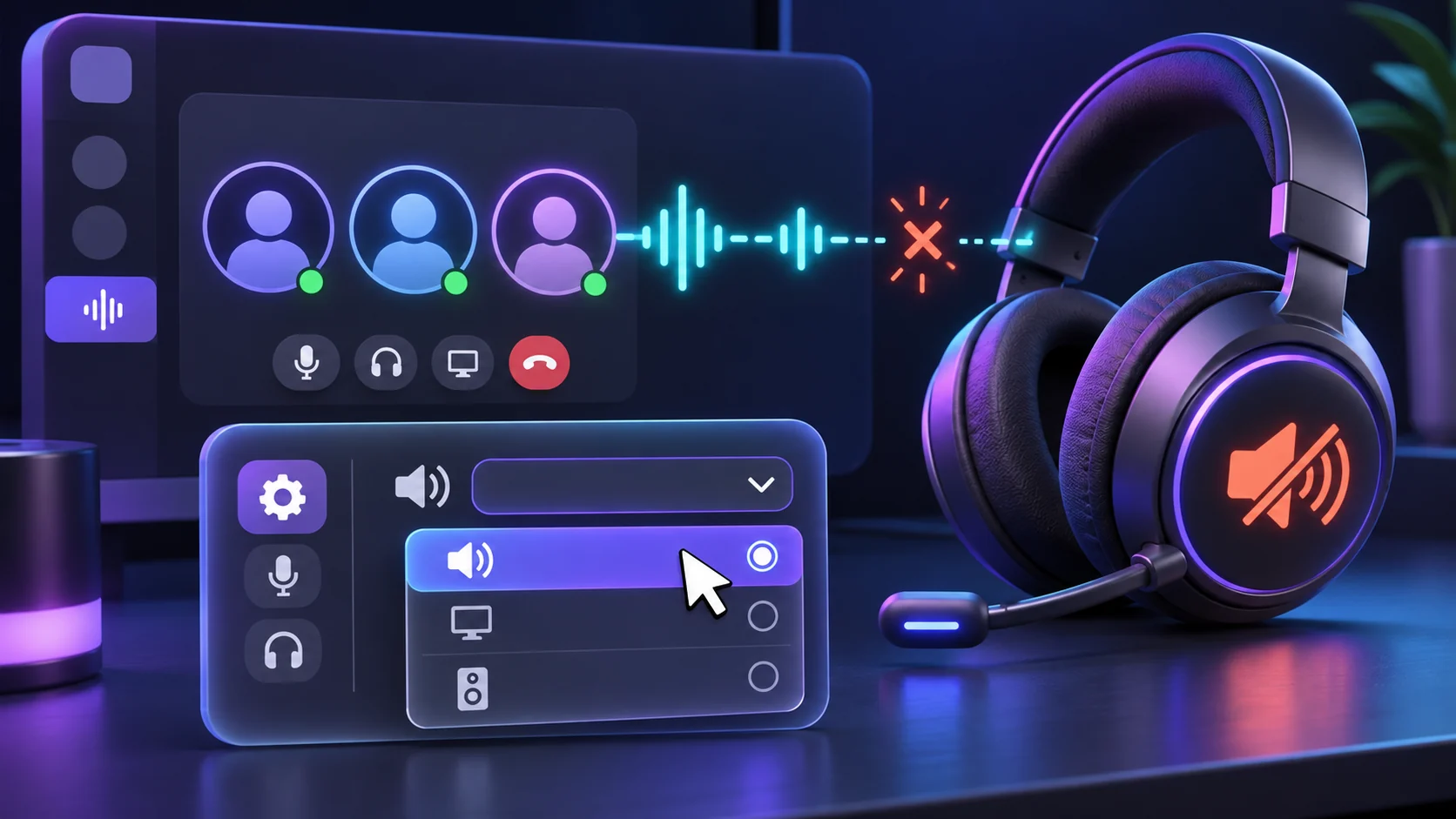
Discord sound can fail in several ways: no voice-chat audio, silent notifications, one inaudible person, or silence only in Discord. It may also use the wrong output, fail in a browser, or cut out intermittently.
Identify the exact symptom before changing settings:
- Nobody in voice chat is audible: check deafen, Discord’s output device, and system app volume.
- One person is inaudible: check that person’s local volume and mute state first.
- Notifications are silent but calls work: review notification sounds separately from voice settings.
- Discord alone has no sound: check per-app volume and output routing.
- The web app alone is silent: check the tab, browser, and site playback controls.
- Audio starts and stops: inspect the device connection, Bluetooth state, drivers, and competing audio apps.
Test after each change so you know which one worked.
Quick Sound Checks First
1. Check Mute and Deafen in Discord
Discord’s microphone and headset controls do different jobs. Mute stops your microphone from sending your voice. Deafen stops incoming call audio, so you cannot hear other people. If the headset icon shows that you are deafened, turn deafen off before changing output settings.
Discord’s current Voice and Video Troubleshooting Guide includes these incoming-audio checks.
2. Check the Main System Volume
Play a trusted sound outside Discord. On Windows, select the speaker icon and confirm the main output is not muted or very low. On macOS, open Apple menu > System Settings > Sound > Output, choose the device, then check Output volume and Mute. If every app is silent, fix system audio first.
3. Select Discord’s Output Device
Open User Settings > Voice & Video. Under Voice, set Output Device to the headphones, speakers, headset, USB device, or Bluetooth device you want, then check Output Volume. After a monitor, dock, or headset change, Discord may remain assigned to the old output.
4. Check Windows Volume Mixer
Windows can mute or route Discord separately. Open Settings > System > Sound > Volume mixer. Under Apps, confirm that running Discord is not muted or very low and that its Output device is correct where shown. If Discord is absent, join a call and reopen the mixer. Microsoft’s app audio troubleshooting guide documents these controls.
5. Check One User’s Discord Volume
If only one person is inaudible, right-click them in the voice channel or call. Remove any local mute and raise their user-volume slider. This setting is local to you, so others may still hear them normally.
6. Leave and Rejoin the Voice Channel
Disconnect, wait a few seconds, and rejoin. A fresh voice session can clear temporary channel state without changing preferences.
7. Restart Discord Completely
Close Discord fully. On Windows, quit it from the notification-area icon if needed; on macOS, use Discord > Quit Discord. Reopen it and repeat the same test.
8. Restart the Computer
Restart normally after saving your work. This can reset audio services, release a busy device, finish updates, and redetect USB or Bluetooth hardware.
9. Test Another Output Device
Try trusted speakers, wired headphones, or another headset, and select it explicitly in Discord. If it works, focus on the original device. If both devices work elsewhere but not in Discord, focus on Discord and per-app routing.
Match Discord to the System Output
10. Check the Default Windows or macOS Output
On Windows, open Settings > System > Sound, choose the intended Output, and compare it with Discord and Volume Mixer. They can point to different destinations.
On macOS, use System Settings > Sound > Output and select the intended device. Apple’s sound output guide covers volume and mute. There is no general speaker-permission prompt; microphone permission affects speaking, not listening.
11. Check Bluetooth Headphones
Confirm that the headset is connected as an audio output, not merely listed as a paired device. Select the available Bluetooth output in both the operating system and Discord, then disconnect and reconnect the headset if it remains silent.
Some headsets expose multiple outputs or change behavior during calls. Use the names your system shows. Compare a wired or built-in output to separate Bluetooth behavior from a Discord problem.
12. Reconnect USB or Wired Audio Devices
Reconnect a wired headset or speaker and check its cable, mute, volume wheel, and power. For USB equipment, try another appropriate working port, then wait for detection before reopening Discord. Change one connection at a time.
Review Discord Voice and Audio Settings
13. Recheck Voice & Video
Return to User Settings > Voice & Video and review Output Device and Output Volume. Select the real device rather than Default for one test. If explicit selection works, the previous system default or routing changed.
On Windows, Discord may also show Audio Subsystem. Standard is the normal choice; Legacy is an advanced compatibility test for some devices. Change it only for a comparison, let Discord restart if prompted, and restore the original choice if it does not help. This control is Windows-specific and may not appear in web or macOS clients.
14. Reset Discord Voice and Video Settings
If individual settings no longer make sense, note your current device and voice choices, then open User Settings > Voice & Video > Debugging > Reset Voice and Video Settings. Confirm the reset and test before customizing anything else.
The reset restores Discord’s Voice & Video preferences to their defaults, so you may need to reselect input and output devices, input mode, and other voice preferences. It does not repair a speaker that the operating system cannot use.
Update the App, System, and Audio Driver
15. Update Discord and the Operating System
Fully restart the official Discord client so it can apply updates, or use a current supported browser. Install normal Windows or macOS updates and restart when required; they can include audio, Bluetooth, and device-compatibility fixes. Do not use modified clients.
16. Update Windows Audio Drivers Safely
Start with Windows Update, including relevant optional drivers from a manufacturer you recognize. Next, use the official support page for the exact PC or audio device.
You can also open Device Manager > Sound, video and game controllers, right-click the known audio device, and choose Update driver. Microsoft’s audio driver guide explains the supported process. Avoid generic driver-download websites and one-click driver tools.
17. Verify the Device in Device Manager
In Device Manager, confirm that the expected audio device appears without a reported error. Do not uninstall unrelated audio, display, Bluetooth, or system devices. For a specific error, follow the manufacturer or Windows troubleshooter.
Check for Audio Conflicts
18. Close Other Audio Apps Temporarily
Quit optional DAWs, virtual mixers, audio-routing tools, streaming software, and other calling apps for one test. They can change routing or hold a device. If Discord works, reopen them one at a time to identify the conflict.
19. Test Windows Exclusive Mode Only if Needed
Exclusive control is a later diagnostic. Record the original state, then open Settings > System > Sound > More sound settings. On Playback, choose the output and open Properties > Advanced. If an exclusive-mode option is enabled, clear it, restart Discord, and test. Restore it if nothing changes; some devices do not expose this option.
Test Discord Web and Browser Playback
20. Compare Desktop Discord with Discord Web
Open the official Discord web app in a current browser, join a test call, and select the intended output under User Settings > Voice & Video if available.
If web audio works while the desktop client is silent, focus on the installed app, its cache, or its per-app route. If both fail on the same device, the system output or hardware is more likely. If desktop works and web fails, focus on browser playback.
21. Check Browser Audio and Site Controls
Unmute the Discord tab. Check the browser in Windows Volume Mixer, reload Discord, rejoin, and review its tab or site-audio controls for discord.com. If the browser reports blocked autoplay, allow it for the test. Safari can mute a tab with its Audio button.
Microphone permission controls what the browser can capture from you; it does not enable speaker playback. Grant microphone access only if you also need to speak. If one current browser stays silent, compare another supported browser before changing system-wide security settings.
Clear App State or Reinstall as Final Steps
22. Clear Discord Cache
If only the desktop app fails after routing, restart, and update checks, follow the How to Clear Discord Cache guide and remove only Discord’s cache data.
Cache cleanup cannot unmute Windows Volume Mixer or repair a disconnected headset. Do not delete all of AppData, an entire Library folder, or unrelated application files.
23. Reinstall Discord
Finally, uninstall Discord normally, restart, and use the official Discord download page. Test default settings before restoring custom choices.
Reinstalling the client does not delete your Discord account, servers, channels, or cloud-stored messages, but you may need to sign in again. Never share a password, account token, or two-factor authentication code.
Discord Sound Works Everywhere Except Voice Chat
If music, videos, and Discord notification sounds work but voice chat is silent, concentrate on voice-only controls: turn off deafen, explicitly select Discord’s Output Device, raise Output Volume, check per-user volume, and leave and rejoin the channel. Reset Voice and Video Settings only after those focused checks.
If Discord never completes the voice connection and remains on RTC Connecting, this is probably connectivity rather than speaker output. Use the Discord Stuck on RTC Connecting guide. If it changes to No Route, follow the Discord No Route Error guide. A connected call with silence and a call that never connects are different failures.
Discord Voice Works but Notification Sounds Don’t
Voice audio and notification sounds have separate Discord controls. Review the sound choices under User Settings > Notifications, then check the operating system’s Discord notification-sound setting, current Focus or Do Not Disturb mode, and selected output.
Do not reset voice devices when calls work normally. A visible notification with no sound points to event or operating-system notification behavior, not a failed voice connection.
Discord Sound Works for Some Users but Not One Person
Right-click the inaudible person, remove any local mute, and return their user-volume slider to a normal level. Ask whether other people can hear them. If nobody can, that person’s microphone, input device, or mute state is the more likely cause; send them the Discord Mic Not Working guide.
If everyone else hears them, the issue is local to your user-volume setting or playback path.
Discord Has No Sound but Other Apps Work
Open Windows Volume Mixer first. Discord may be muted, set very low, or assigned to a different output while the rest of Windows uses your speakers. Then compare Windows’ default output with Discord’s explicit Output Device and Output Volume.
On macOS, reselect the device in both Sound > Output and Discord. If only the installed client fails, compare Discord web before clearing cache or reinstalling.
Discord Sound Not Working with Bluetooth Headphones
Confirm the headphones are connected, selected as the system output, and selected inside Discord. Reconnect them and reopen Discord after the operating system detects them. If multiple Bluetooth outputs appear, compare the available choices rather than assuming one name fits every headset.
Test a wired headset or built-in speaker if possible. A successful wired test narrows the issue to Bluetooth connection, routing, or device behavior; it does not prove Discord itself is broken.
Discord Sound Not Working in Browser
Unmute the tab, raise the browser in Windows Volume Mixer, check its output route, review site-audio controls for discord.com, and reload the page. Leave and rejoin after a site-setting change.
Remember that allowing the microphone affects what other people hear from you, not what you hear from them. If another browser works, restore the first browser’s site settings carefully instead of disabling its security protections.
Frequently Asked Questions
Why can't I hear anyone on Discord?
You may be deafened, Discord may use the wrong output, its app volume may be muted, or the voice session may need reconnecting. Check those items in that order.
Why does Discord have no sound but other apps work?
Windows can give Discord its own volume and output route. Check Volume Mixer, then compare Discord's Output Device with the system output.
Why can I hear Discord notifications but not voice chat?
Notification and voice audio use different controls. Turn off deafen, check Discord's voice Output Device and Output Volume, inspect user volume, and rejoin the channel.
Why can I hear everyone except one person?
That user may be locally muted or have a low per-user volume. If nobody can hear them, the problem is probably their microphone or mute state.
How do I change Discord's output device?
Open User Settings > Voice & Video and select the intended device under Output Device. Check Output Volume at the same time.
Can Windows Volume Mixer mute Discord separately?
Yes. Windows provides Discord with a separate app volume and, where available, a per-app output choice under Settings > System > Sound > Volume mixer.
Why is Discord sound not working with Bluetooth headphones?
The headset may be disconnected, selected only in one layer, or exposing a different output during calls. Reconnect it and select the available Bluetooth output in both the system and Discord.
Why does Discord web have no sound?
The tab or browser may be muted, Windows may have lowered the browser, or site playback may be restricted. Check playback controls; microphone permission is not required merely to listen.
Should I reset Discord voice settings?
Use Reset Voice and Video Settings only after checking deafen, output selection, app volume, and the device. The reset returns Discord's voice and video preferences to defaults.
Will reinstalling Discord fix audio problems?
It can replace damaged app files, but it cannot repair a muted system route or failed headset. Reinstall from Discord's official download page only after simpler checks fail.
Related guides
Continue with another practical explanation from the guide index.
Discord Stuck on RTC Connecting: How to Fix It
Fix Discord stuck on RTC Connecting with practical checks for your network, VPN, DNS, firewall, voice settings, router, drivers, and Discord connection issues.
Discord Camera Not Working: How to Fix It
Fix your Discord camera not working with practical checks for camera permissions, device selection, other apps using the webcam, drivers, Windows, macOS, and Discord settings.
Discord Notifications Not Working: How to Fix It
Fix Discord notifications not working on desktop or mobile with practical checks for notification settings, muted servers and channels, Windows, Android, iPhone, and Discord app issues.