Discord Notifications Not Working: How to Fix It
Fix Discord notifications not working on desktop or mobile with practical checks for notification settings, muted servers and channels, Windows, Android, iPhone, and Discord app issues.
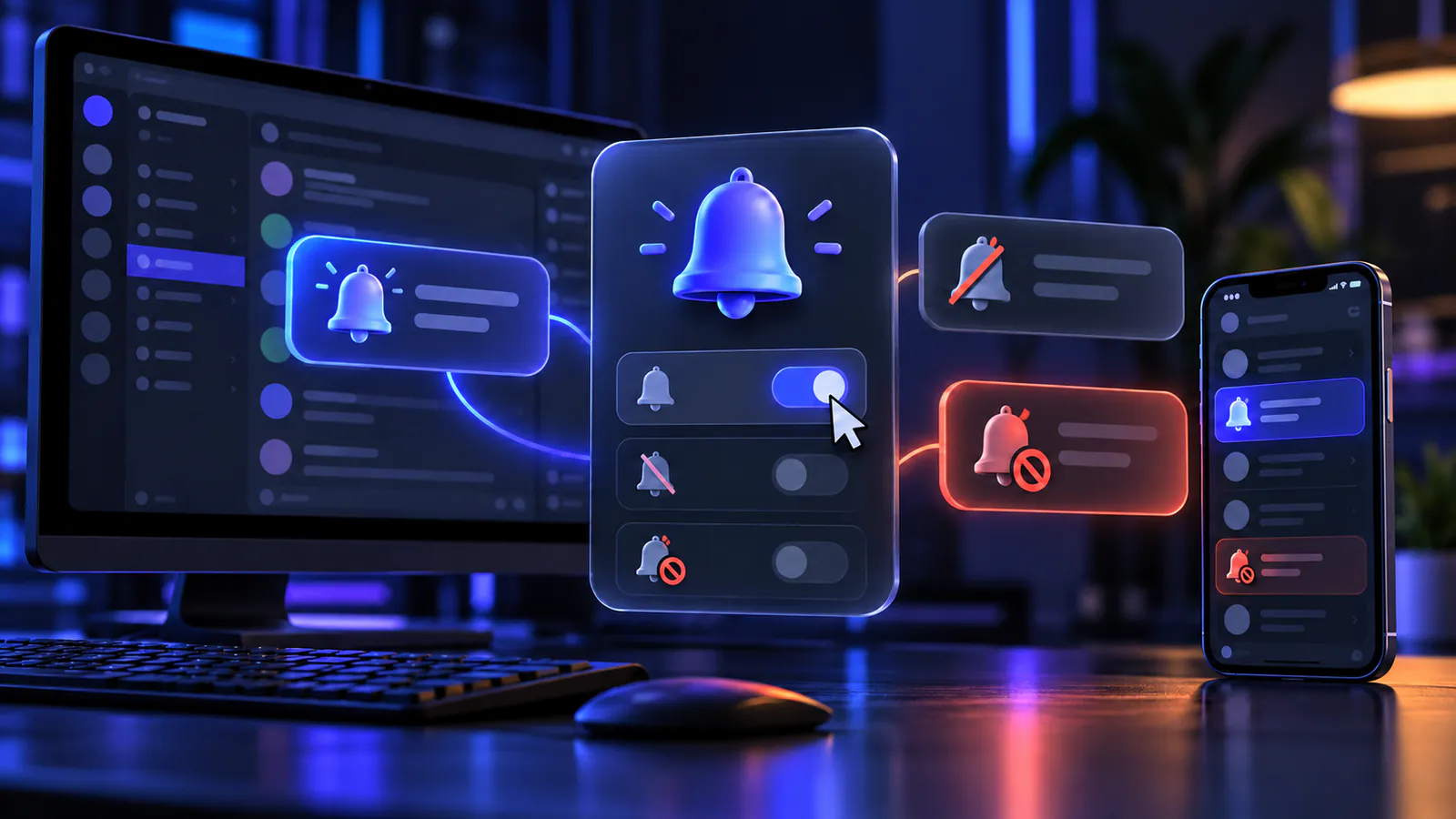
On this page
Discord notifications can stop at several different layers. Discord may not be sending an alert, one server or channel may be muted, the operating system may be hiding it, or a phone may be restricting the app in the background.
Start by identifying the smallest part that is broken. A missing banner, missing sound, and missing mobile push are different symptoms, so changing every setting at once makes the real cause harder to find.
Check What Is Actually Missing
Before changing anything, note whether the problem affects:
- every Discord notification;
- one server or one channel;
- desktop or mobile only;
- push notifications while Discord is closed;
- direct mentions but not ordinary messages; or
- sound only, while banners still appear.
Use one expected message from a trusted participant for each test. Compare an ordinary channel message with one direct mention, then stop. This is enough to distinguish a delivery problem from a server setting without spamming people.
If only one server or channel fails, begin with its notification controls. If every app notification is missing on one device, begin with that device’s system permission. If alerts appear silently, skip to the sound checks.
1. Restart Discord Completely
Quit Discord rather than only closing its window, then open it again. On Windows, use Discord’s tray icon to quit if it is present. If the app remains stuck, open Task Manager and end only processes clearly named Discord; do not terminate unrelated processes or every process with a generic updater name.
On macOS, quit Discord from the application menu. On Android or iPhone, close and reopen the app, then restart the device if the problem continues. A clean restart can restore a stalled connection and finish a pending app or operating-system change.
2. Check Discord’s Notification Controls
Open Discord’s user settings and review the Notifications area shown on that device. Desktop and mobile have separate controls, and wording can change between app versions. Confirm that the notification types and sounds you expect are enabled rather than looking for one universal switch.
Also check two Discord features that can silence desktop alerts:
- Do Not Disturb status mutes desktop notifications. Change the status temporarily for a comparison.
- Streamer Mode can disable desktop notifications and sounds, and it may start automatically with supported streaming software. Review its notification options if you stream or record.
Discord’s current mobile notification guide also notes that an alert is not shown while Discord is open and focused on that same device. Lock the phone or switch away from Discord before testing a push notification.
Discord Notifications Not Working for One Server
Open the server menu and its notification settings. Discord currently offers these server-level choices:
- All Messages for alerts from every message;
- Only @mentions for direct, role,
@everyone, and@herementions; and - Nothing for no message notifications from that server.
Choose the level you actually want. On large servers, All Messages can be noisy, so Only @mentions may be intentional rather than a fault.
Check whether the whole server is muted as well. A server mute suppresses normal server alerts and disables its mobile push notifications. Discord’s desktop guidance says an @everyone mention may still notify from a muted server unless that mention type is suppressed separately, so inspect the mention switches instead of treating mute as the only control.
Finally, review Mobile Push Notifications and the list of channel overrides in the same server settings. Discord’s server notification guide documents these controls. One override can explain why most of a server works while a particular channel does not.
Discord Notifications Not Working for One Channel
Open that channel’s notification settings or find it under the server’s notification overrides. A channel can use the server default or have its own All, Mentions, Nothing, or mute choice, depending on the current client.
Remove an accidental override or select the behavior you want. Then check the channel’s mute state separately. A muted channel is a strong explanation when only that channel fails; Discord documents channel mute as silencing its alerts, including mentions. Category-level choices can also affect channels beneath a category, so inspect the nearest visible override if the channel itself looks correct.
Why Am I Only Getting Mention Notifications?
The server is probably set to Only @mentions. Under that setting, ordinary messages do not create notifications, while a direct @username mention, a role mention, @everyone, or @here can do so.
Discord also provides separate suppression controls for @everyone and @here, role mentions, and other server highlights. If direct mentions work but a role or mass mention does not, review those switches and the channel override. Do not assume a server permission is broken merely because an intentionally suppressed mention stays quiet.
Discord Notifications Not Working on Windows
Open Windows Settings > System > Notifications. Confirm that system notifications are on and that Discord is allowed as a notification source. Open Discord’s entry if available and review banners, Notification Center delivery, and sound separately.
Windows Do Not Disturb can send non-priority alerts silently to Notification Center, and automatic rules may enable it during certain times, games, or full-screen use. Turn it off briefly or add Discord only if you want it in the priority list. Microsoft’s Windows notification guide covers both the main permission and per-app options.
Keep the test narrow: do not disable Windows Security, antivirus, or the firewall. Those controls do not replace notification permission and weakening them is not a useful notification test.
Discord Notifications Not Working on macOS
Open System Settings > Notifications, select Discord, and allow notifications. Review where alerts may appear and whether notification sounds are allowed. Then inspect the active Focus mode, including any schedule that turns it on automatically.
Apple’s macOS notification settings guide documents the per-app controls. If Discord is missing from the list after a fresh installation, open the official app, use it normally, and check again before reinstalling.
Discord Notifications Not Working on Android
Open Android Settings, find Discord under Apps or Notifications, and confirm that notifications are allowed. Android can expose separate categories for messages, social activity, calls, and other alert types. If some alerts work, check the affected category instead of resetting every app preference.
Next, review Do Not Disturb and Discord’s battery or background setting. Menu names vary by phone. If Discord is explicitly Restricted, paused, or blocked from background use, restore its normal or Optimized behavior. Do not disable all battery protection globally; Google notes that changing optimization can increase battery use. If pushes fail only on mobile data, check that Discord is not denied background data or blocked by Data Saver.
Google’s Android notification guidance explains app categories and notes that settings vary by device. Test with the screen locked and Discord not open in the foreground.
Discord Notifications Not Working on iPhone
Open iPhone Settings and find Discord’s Notifications page. Turn on Allow Notifications, then select the alert locations you want, such as Lock Screen, Notification Center, or banners. Check Sounds separately and review any Scheduled Summary that may delay delivery.
Open Focus settings and see whether an active mode silences Discord. Allow the app in that Focus only if you want its alerts during quiet time. Apple’s iPhone notification guide explains these delivery choices.
Background App Refresh is not a required fix for ordinary push delivery, so do not change it solely because notifications are missing. Start with notification permission, Focus, Discord’s server settings, and a current app version.
Check Focus or Do Not Disturb
Quiet modes operate above Discord. Windows Do Not Disturb, macOS or iPhone Focus, and Android Do Not Disturb can suppress banners, sounds, or both even when Discord is configured correctly.
Temporarily turn the active mode off for one controlled test. If notifications return, adjust its app exceptions or schedule rather than leaving a useful quiet mode disabled permanently. Also check Discord’s own Do Not Disturb status for desktop alerts.
Discord Notifications Work on Desktop but Not Mobile
This points first to the phone: check Discord’s system permission, notification categories, server Mobile Push Notifications setting, Focus or Do Not Disturb, and battery/background restrictions. Lock the phone or move away from the Discord app before testing because Discord does not alert while it is open and focused on that same device.
Current Discord documentation does not state a blanket rule that merely using Discord on a desktop always cancels phone pushes. Treat mobile delivery as its own test instead of assuming the desktop is the cause.
Discord Notifications Work on Mobile but Not Desktop
Review Windows or macOS notification permission, banner delivery, and sound. Then check Discord’s desktop notification controls, Discord Do Not Disturb status, and Streamer Mode. If Discord is open but no desktop alert appears, switch to another app before a controlled test so the client is not focused.
If the desktop app freezes or closes during the test, troubleshoot that symptom with the Discord Keeps Crashing guide rather than repeatedly changing notification settings.
Discord Notifications Appear but Make No Sound
A visible notification proves that delivery works; the remaining problem is the sound layer. Check all of these independently:
- the Discord sound control for the relevant event;
- the app-specific sound option in Windows, macOS, Android, or iPhone settings;
- the device’s volume and current audio output;
- silent mode on iPhone; and
- Focus, Do Not Disturb, or Streamer Mode settings that silence sounds.
Play normal audio to confirm the selected speaker or headset works. Do not reinstall Discord when only the device is muted or the banner is deliberately configured to be silent.
Update Discord and Recheck Permissions
Install Discord updates through the official desktop client, Google Play, or Apple’s App Store. Restart the app afterward. If the desktop updater is stuck, use the Discord Update Failed checklist instead of an unofficial installer.
After a Discord or operating-system update, revisit the app’s notification permission and categories. An update can expose a new category or leave a permission needing attention, especially if the app was reinstalled. Change only the setting that is off, then test again.
Clear Discord Cache Only After Simpler Checks
Damaged temporary data can contribute to unusual client behavior, but cache is not where server mute choices or operating-system permissions live. Restart, check the relevant settings, and update first.
If the app still behaves inconsistently, follow the device-specific How to Clear Discord Cache guide. Remove only Discord’s documented cache data. Never delete all of AppData, a whole Library folder, or unrelated application files.
Reinstall Discord as a Final App-Level Step
Reinstall only after the focused checks fail. Uninstall Discord normally, restart the device, and get a fresh copy from the official Discord download page, Google Play, or Apple’s App Store. Avoid modified clients and download mirrors.
Be ready to sign in again and complete your own two-factor authentication if required, but never give anyone a password, token, or 2FA code. After reinstalling, approve the system notification request and test default settings before restoring custom choices.
Test Another Server or Channel
Compare one expected message in a second server or direct message, then compare another channel in the original server. Keep the same device and notification type for both tests.
If the second location works, return to the affected server’s mute, notification level, mention suppression, and channel overrides. If neither works, focus on Discord-wide and operating-system settings. This controlled comparison is more useful than repeatedly toggling unrelated options.
If every device and account area is affected after these steps, check Discord Status and contact Discord Support with the device, operating-system version, affected server or channel scope, and the steps already tried.
Frequently Asked Questions
Why am I not getting Discord notifications?
Discord may be focused on the same device, its notification controls may be off, a server or channel may be muted, or the operating system may be blocking or silencing the app. Identify the affected device and scope first.
Why do Discord notifications work for some servers but not others?
Each server has its own notification level, mute state, mention suppression, mobile push choice, and channel overrides. Compare the affected server with one that works.
Why am I only getting mention notifications?
The server is likely set to Only @mentions. Ordinary messages stay quiet while direct, role, @everyone, or @here mentions may notify unless their type is suppressed.
Why are Discord notifications not working on my phone?
Check the phone's Discord notification permission, app categories, Focus or Do Not Disturb, server mobile-push setting, and battery or background restrictions. Test while Discord is not open and focused.
Why are Discord notifications not working on Windows?
Windows may have notifications, Discord as a source, banners, or sounds disabled. Do Not Disturb and its automatic rules can also silence delivery.
Why do Discord notifications show but make no sound?
Delivery is working, but Discord's event sound, the operating system's app sound, device volume, output device, silent mode, Focus, or Streamer Mode may be muting audio.
Can muting a server stop notifications?
Yes. A server mute suppresses normal alerts and mobile pushes. Review mention-suppression switches too, because Discord documents some mass-mention behavior separately.
Can Focus or Do Not Disturb block Discord notifications?
Yes. System quiet modes can hide banners, silence sounds, or delay delivery even when Discord's own settings are correct. Check active modes and schedules.
Should I clear Discord cache if notifications stop working?
Only after restarts, settings, permissions, and updates. Cache cleanup may help damaged local state, but it cannot correct a muted server or an operating-system permission.
Will reinstalling Discord fix notifications?
It can replace damaged app files, but it will not automatically fix server choices, channel overrides, or Focus rules. Reinstall from an official source only after simpler checks fail.
Related guides
Continue with another practical explanation from the guide index.
Discord Sound Not Working: How to Fix It
Fix Discord sound not working with practical checks for output devices, Windows volume settings, muted channels, audio drivers, browser permissions, and Discord voice settings.
Discord Stuck on RTC Connecting: How to Fix It
Fix Discord stuck on RTC Connecting with practical checks for your network, VPN, DNS, firewall, voice settings, router, drivers, and Discord connection issues.
Discord Camera Not Working: How to Fix It
Fix your Discord camera not working with practical checks for camera permissions, device selection, other apps using the webcam, drivers, Windows, macOS, and Discord settings.