How to Enable Developer Mode on Discord
Learn how to enable Developer Mode on Discord desktop and mobile, copy user, server, channel, role, and message IDs, and understand what Developer Mode actually does.
On this page
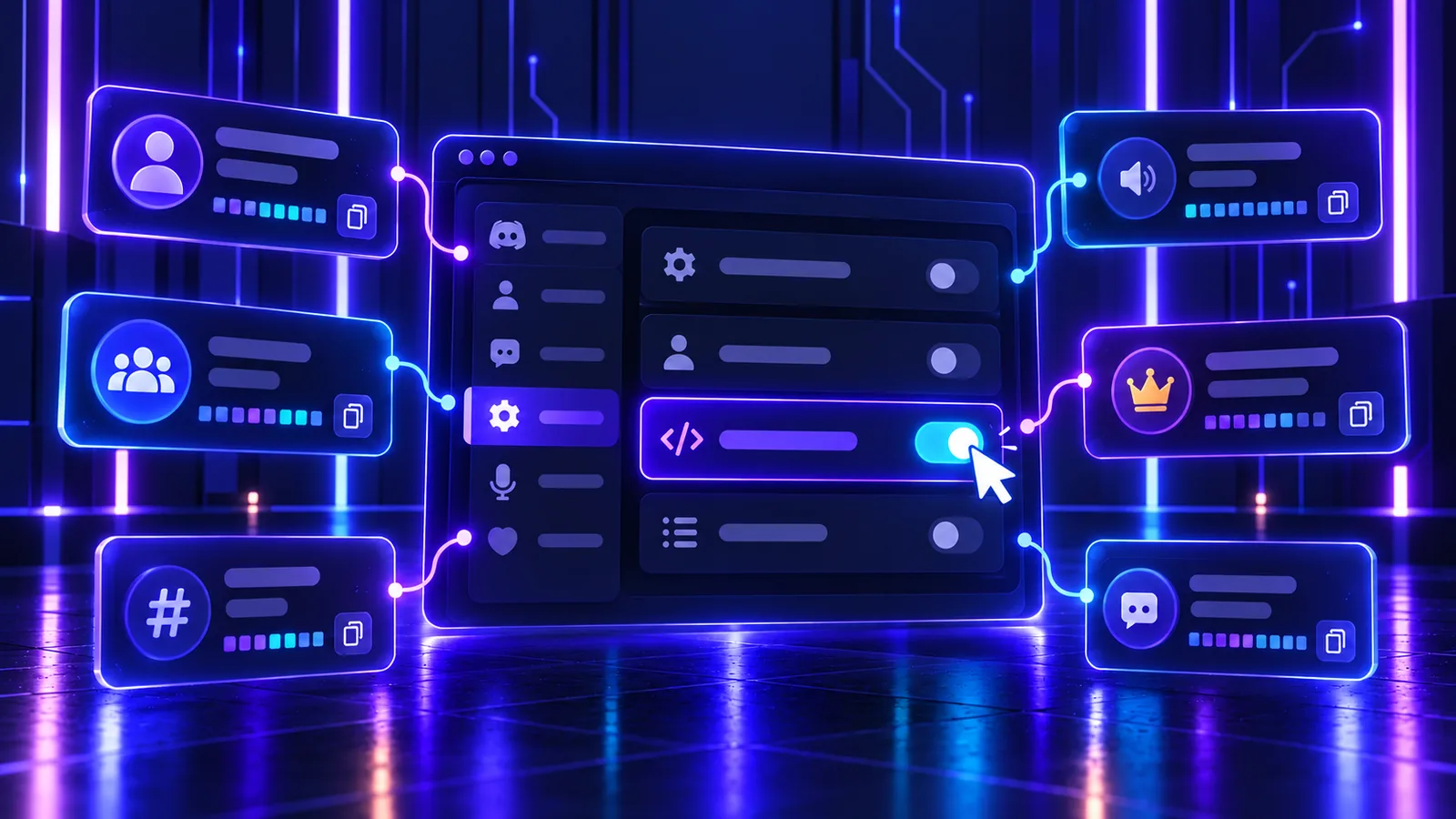
Discord Developer Mode is a client setting that exposes extra technical actions, mainly options for copying Discord IDs. Those IDs help bots, support teams, moderators, integrations, and developers identify an exact user, server, channel, role, or message.
Turning it on does not change your server access or turn your account into a developer account. It simply adds tools to Discord’s menus.
What Is Discord Developer Mode?
Developer Mode makes technical information easier to copy from the normal Discord interface. After enabling it, context menus can include actions such as Copy User ID, Copy Server ID, Copy Channel ID, Copy Role ID, and Copy Message ID.
These IDs are useful when a bot setup asks for a target channel, a moderator needs to identify the correct account, or Discord Support requests an exact object. You do not need to understand programming to copy one.
What Developer Mode Does Not Do
Developer Mode does not:
- give you Administrator or any other server permission;
- make you a Discord developer automatically;
- provide access to another person’s account;
- reveal Discord account or bot tokens;
- bypass server, role, or channel permissions;
- unlock hidden Nitro features; or
- grant access to Discord’s API by itself.
It is also unrelated to a web browser’s developer tools. You do not need a browser console, scripts, unofficial clients, or credential-extraction tools for anything in this guide.
1. How to Enable Developer Mode on Discord Desktop
Discord’s current official ID guide gives this desktop path:
- Select the User Settings cogwheel near the bottom-left of Discord.
- Open Advanced under the app settings.
- Turn on Developer Mode.
A checkmark on the switch indicates that it is enabled. Close settings and open the context menu for the user, server, channel, role, or message whose ID you need.
2. How to Enable Developer Mode on Discord Web
The Discord web client uses the same general settings layout as the desktop app. Open User Settings, choose Advanced, and enable Developer Mode.
If Discord changes the position of a setting, look for Advanced within the app settings instead of relying only on its position in the sidebar. Refresh the browser tab if the new Copy ID actions do not appear immediately.
3. How to Enable Developer Mode on Android
Discord currently publishes one combined mobile workflow for Android and iOS:
- Tap your avatar in the bottom-right corner.
- Tap the settings cogwheel in the top-right corner.
- Scroll to Advanced under App Settings.
- Enable Developer Mode.
Older guides may direct Android users to a Behavior page. That is not the path in Discord’s current official instructions, so use the Advanced page shown in your current app.
4. How to Enable Developer Mode on iPhone or iPad
On the current iOS app, tap your avatar, open the settings cogwheel, find Advanced under App Settings, and turn on Developer Mode.
Older iPhone instructions sometimes place the toggle under Appearance. Discord’s current support material no longer separates iOS that way; it documents the same Advanced path for mobile. Keep the app updated if the setting is missing.
5. How to Copy a Discord User ID
On desktop or web, find the person in a server member list, chat, group conversation, or direct message. Right-click their name or avatar and choose Copy User ID.
On mobile, open the user’s profile, tap the three-dot menu in the top-right, and choose Copy User ID. The copied number identifies the account; it is not the person’s username or display name.
6. How to Copy a Discord Server ID
On desktop or web, right-click the server icon in the server list and select Copy Server ID.
On mobile, open the server, tap its name, scroll through the server menu, and tap Copy Server ID. Discord also calls a server a “guild” in some developer documentation, so a Server ID and Guild ID refer to the same object.
7. How to Copy a Discord Channel ID
On desktop or web, right-click the channel in the channel list and choose Copy Channel ID. This works for text and voice channels when the option is available in their context menu.
On mobile, long-press the channel, scroll through the action sheet if necessary, and choose Copy Channel ID. Make sure you opened the channel’s menu rather than a message inside it.
8. How to Copy a Discord Role ID
On desktop or web, open Server Settings > Roles, locate the role, and open its context or three-dot menu. Choose Copy Role ID. Discord may also expose that action from a role in another supported context menu.
Role controls depend on your server access and client. If you cannot open the role list, ask an authorized server manager for the ID rather than requesting broader permissions. For more context, see how to create and manage Discord roles.
9. How to Copy a Discord Message ID
Open the exact message’s context menu: right-click it on desktop or web, or long-press it on mobile. If your client shows Copy Message ID, select it.
Discord’s current help article is inconsistent here: its written steps say Copy Message Link, while its image captions say Copy Message ID. The current client can expose both as separate actions. If Copy Message ID is not shown, copy the message link; its final numeric segment is the message ID. Keep the complete URL instead when someone specifically asks for a message link. A link opens the message only for someone who already has access to its location.
What Is a Discord ID?
A Discord ID is a unique numeric identifier used for an object in Discord. Users, servers, channels, roles, and messages can each have their own ID. Discord’s developer documentation calls these identifiers snowflakes.
An ID helps software or support staff target the exact object rather than relying on a visible name. If two channels have similar names, for example, their IDs still distinguish them.
Are Discord IDs Private?
An ID is an identifier, not a password or authentication credential. It is often reasonable to share the specific ID requested by a trusted bot configuration, server administrator, or Discord Support.
That does not mean every ID needs to be posted publicly. An ID can point to a particular account or server object, and surrounding messages or screenshots may reveal personal or community context. Share only what is needed and verify who is asking.
Discord ID vs Username
A username or display name is meant for people to read and can be changed. Display names can also be similar or identical. An ID is intended to identify one specific Discord object in technical systems, which is why support forms, logs, and bot configurations often request it.
Copy the ID with Discord’s built-in action instead of typing a visible name or transcribing a number from a screenshot. If an object is deleted or you lack access to it, possessing its ID does not restore the object or bypass permissions.
Discord ID vs Discord Token
A Discord ID identifies an object. It is commonly safe to provide when a legitimate support or configuration task requires it.
A Discord token is an authentication credential. Never share an account token or bot token, and never share your password, 2FA code, backup codes, or authentication headers. Developer Mode does not display tokens.
You do not need to open browser developer tools, inspect network traffic, paste console scripts, or run a “token grabber” to copy an ID. If instructions ask for any of those actions, stop.
Developer Mode and Bots
Bot setup forms and commands often use IDs to select an exact user, channel, server, or role. Logs may also record IDs so names can change without making the entry ambiguous.
Developer Mode only helps you copy those values. It does not install a bot or approve its permissions. If you are configuring an app, follow the safe steps in How to Add Bots to a Discord Server and review Discord permissions before granting access.
Why Do Bots Ask for a User ID or Channel ID?
A bot may need an ID to send output to one channel, apply a command to one user, attach a setting to one server, or refer to one role. The ID prevents the bot from confusing objects with similar visible names.
Only provide an ID when the bot and request are legitimate. An ID request is not a reason to provide credentials or give the bot Administrator.
Does Developer Mode Give API Access?
No. The client toggle does not create a Discord application, bot, developer team, API credential, or token. Building an integration is a separate process through Discord’s developer platform and still requires appropriate authorization.
Do I Need Developer Mode to Use Discord?
No. Normal messaging, voice calls, server participation, moderation, and bot commands work without it. Enable Developer Mode only when you need one of its technical actions, such as copying an ID.
Does Developer Mode Make My Account Less Secure?
The toggle itself does not grant account access or extra server permissions. It adds technical actions to your own client menus.
Security still depends on how you handle credentials and requests. Share a needed ID carefully, but never share tokens, passwords, 2FA codes, or backup codes.
Can Other People See That I Enabled Developer Mode?
Discord’s current support guide presents Developer Mode as a user setting and does not document a public profile badge, status, or notification for it. Discord does not publish a separate visibility guarantee, so the precise claim supported by its documentation is that the setting changes the technical actions available in your client.
How to Turn Developer Mode Off
Return to the same Advanced settings page and switch Developer Mode off. The extra Copy ID actions will be hidden again; turning the setting off does not delete objects or invalidate IDs you already copied.
Why Can’t I See Copy ID?
- Confirm that Developer Mode is enabled on the device you are using.
- Open the menu for the correct object: a user, server icon, channel, role, or individual message.
- On mobile, use a tap, three-dot menu, or long-press appropriate to that object.
- Refresh the web client or restart the app after changing the setting.
- Update Discord if your menus do not match current instructions.
- Check whether your server access allows you to open the relevant role or server controls.
Common Developer Mode Mistakes
- Copying a username when a form asks for a User ID
- Sharing a token, password, or 2FA code instead of an ID
- Assuming Developer Mode grants Administrator or bypasses permissions
- Copying a channel ID when the bot needs a server, role, or message ID
- Sending a screenshot when an exact copyable ID is required
- Confusing Discord Developer Mode with browser developer tools
- Enabling it for everyday Discord use when no technical action is needed
Frequently Asked Questions
What does Developer Mode do on Discord?
It exposes extra technical actions in the Discord client, mainly options for copying IDs for users, servers, channels, roles, and messages.
How do I enable Developer Mode on Discord?
On desktop or web, open User Settings > Advanced. On the current Android and iOS apps, open your profile, tap the settings cogwheel, and find Advanced under App Settings. Then enable Developer Mode.
Is Discord Developer Mode safe?
The toggle itself does not grant account access or server permissions. Use IDs only for legitimate tasks and never share tokens, passwords, 2FA codes, or backup codes.
Can Developer Mode show my Discord token?
No. Developer Mode exposes Copy ID actions, not account or bot tokens. Never follow instructions that claim you must extract a token to copy an ID.
How do I copy a Discord User ID?
With Developer Mode enabled, right-click the user on desktop or web and choose Copy User ID. On mobile, open the profile, tap the three-dot menu, and choose Copy User ID.
How do I copy a Discord Server ID?
Right-click the server icon on desktop or web and choose Copy Server ID. On mobile, tap the server name, scroll through its menu, and select Copy Server ID.
How do I copy a Discord Channel ID?
Right-click a text or voice channel on desktop or web and choose Copy Channel ID. On mobile, long-press the channel and select the same action.
Why can't I see Copy ID on Discord?
Developer Mode may be off, you may have opened the wrong context menu, or the client may need a refresh or update. Some role and server controls also depend on your access.
Do I need Developer Mode to use bots?
No. You can use normal bot commands without it. Developer Mode is useful only when a bot's legitimate configuration asks for an exact user, server, channel, role, or message ID.
Can I turn Developer Mode off later?
Yes. Return to the Advanced settings page and disable the toggle. This hides the extra Copy ID actions without changing your account or server access.
Related guides
Continue with another practical explanation from the guide index.
How to Leave a Discord Server
Learn how to leave a Discord server on desktop and mobile, what happens after you leave, how to leave a server you own, and whether you can join again later.
How to Delete a Discord Server
Learn how to delete a Discord server on desktop and mobile, what happens to channels and members, how ownership affects deletion, and what to check before deleting a server permanently.
How to Create a Discord Invite Link
Learn how to create a Discord invite link, choose expiration and usage limits, make permanent invites, revoke old links, and troubleshoot invite problems.