How to Transfer Discord Server Ownership
Learn how to transfer ownership of a Discord server safely, what changes after the transfer, what permissions the new owner receives, and what to check before handing over control.
On this page
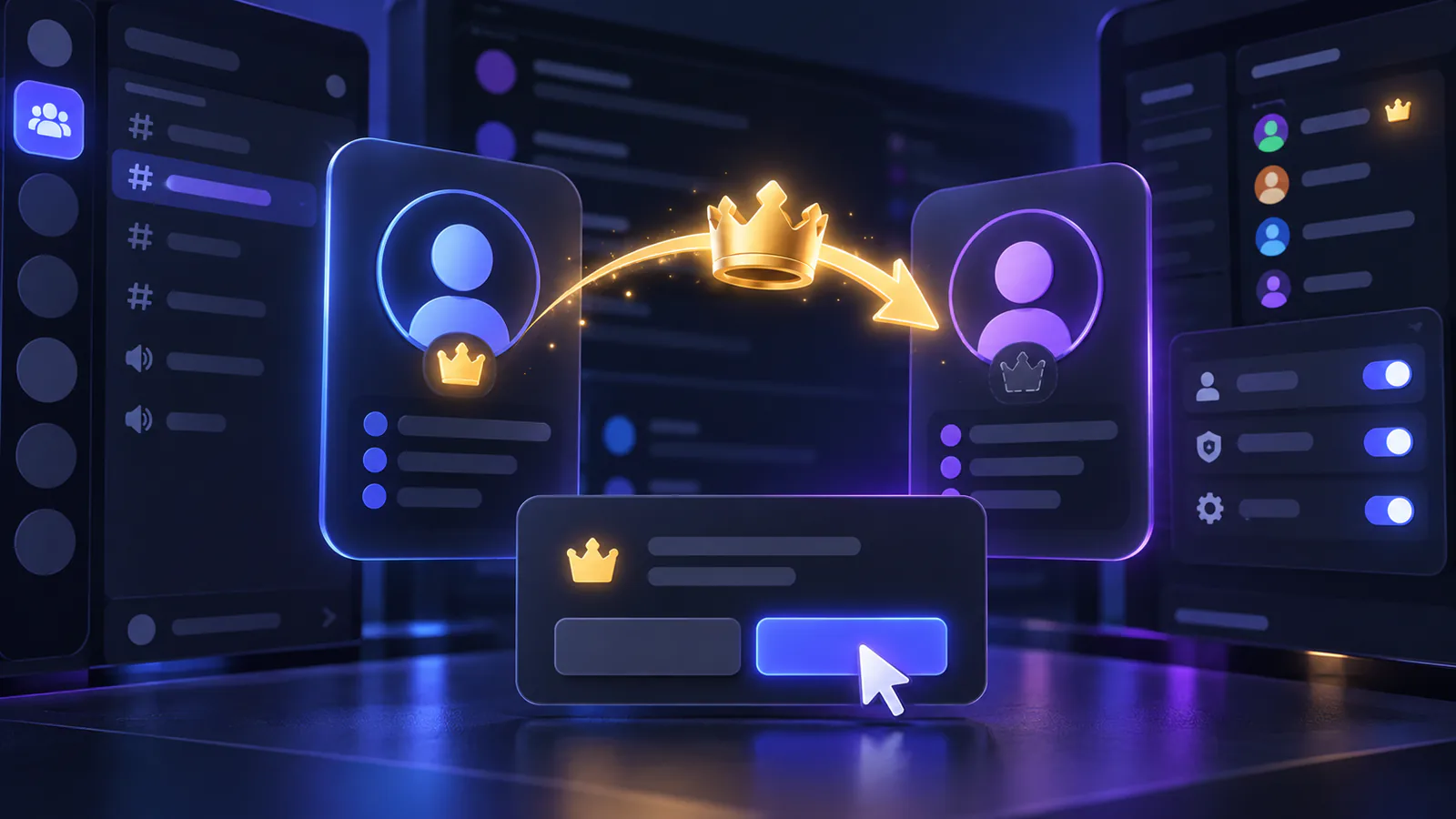
Transferring a Discord server makes another existing member the person Discord recognizes as its owner. It does not merely give them an admin role, and the previous owner cannot reverse the change alone afterward.
Check the recipient carefully, review the server’s staff access and integrations, and then use Discord’s built-in ownership transfer control. Never hand over an account password, two-factor authentication code, or user token.
What Transferring Discord Server Ownership Means
A Discord server has one owner. Ownership is account-specific authority over that server, including owner-only actions. For example, Discord says only the owner can delete the server, regardless of another member’s permissions.
Ownership is different from the following concepts:
- Administrator is a powerful permission that grants all permissions and bypasses normal channel restrictions. It does not make its holder the owner.
- Moderator or admin roles are ordinary server roles assembled from permissions. Their names have no special meaning by themselves.
- Role hierarchy controls which roles and members someone can manage. Moving a role higher does not turn it into ownership.
An administrator may be able to change most server settings, but ownership remains separate. See Discord Permissions Explained for how Administrator, channel overrides, and hierarchy work together.
What to Check Before Transferring Ownership
Treat the transfer as a handover, not a routine permission change. Before confirming it:
- Verify the exact recipient. Check the person’s current username, profile, and server membership. Similar display names can make the wrong member look convincing.
- Choose someone you trust. The new owner will control owner-only decisions, and you will have no unilateral way to take ownership back.
- Confirm they are already a server member. Discord’s normal transfer workflow selects a member of the server.
- Review important roles and permissions. Decide what access you should retain and remove stale staff access. Use How to Create and Manage Discord Roles if the staff structure needs cleanup.
- Audit bots and integrations. Record who controls bot hosting, developer applications, dashboards, webhooks, domains, and external services.
- Check moderation coverage. Make sure trusted staff can still handle reports, AutoMod alerts, bans, and urgent incidents.
- Plan staff continuity. Tell the recipient and key staff when the change will happen, what responsibilities move, and how they will communicate afterward.
If the server uses paid or monetized features, review their separate Discord policies before the transfer. Server Boosts and Server Subscriptions are not the same product. Partnered and Verified servers must use a Discord Support ticket for an ownership transfer. Discord’s Monetization Policy requires Safety review for monetized transfers, while a server with active Server Subscriptions also requires the recipient to meet Discord’s subscription transfer requirements. Future payouts and responsibility for existing subscriber benefits move to the new owner.
How to Transfer Discord Server Ownership on Desktop
For an ordinary server eligible for self-service transfer, Discord’s current desktop and browser workflow uses the server’s member-management area:
- Open the server and go to its Members management view.
- Find the member who should become the owner.
- Open that member’s action menu and choose Transfer Ownership.
- Read the confirmation carefully and enable the acknowledgment control.
- Confirm the transfer.
- If multi-factor authentication is enabled on your account, enter the requested MFA code.
Discord can adjust menu placement over time, so use the current member-management screen rather than relying on an old screenshot. Stop if the profile in the confirmation is not the intended recipient.
The official ownership transfer guide shows Discord’s current controls.
How to Transfer Discord Server Ownership on Mobile
For an ordinary self-service transfer, the mobile app uses a member settings flow rather than a desktop right-click menu:
- Open the server menu and enter Server Settings.
- Open Members.
- Tap the intended recipient.
- Choose Transfer Ownership from that member’s available actions.
- Review and acknowledge the confirmation, then complete the transfer.
- Enter an MFA code if Discord requests one because MFA is enabled on your account.
The exact position of a control can vary by app version, but the safe pattern stays the same: start from the server’s member list, select the recipient, and use Discord’s native transfer action. Do not log in as the other person or use an unofficial tool.
What Happens After Ownership Is Transferred?
The selected member becomes the server owner, and the former owner stops being the owner. Discord does not automatically remove the former owner: they remain a member unless they later leave or are removed. Their continuing access comes from their ordinary roles and permissions.
Ownership-specific authority moves to the new owner. It is not copied, shared, or added as another ordinary role. The outgoing owner should therefore confirm any post-transfer staff role before proceeding rather than assuming their previous control will remain.
What Happens to Roles?
Existing roles remain part of the server. Ownership is not a role you can reorder, assign to several people, or reproduce by enabling Administrator.
The former owner keeps whatever ordinary roles remain assigned to their member account. Those roles determine what they can do after the transfer, subject to Discord’s normal permissions and hierarchy. Review broad Administrator roles before the handover so ownership changes without leaving unnecessary full-access accounts behind.
What Happens to Bots and Integrations?
Transferring ownership does not itself reinstall bots or create a new server. Existing server-side configuration generally remains in place, but an external integration may depend on an account, developer application, hosting service, billing profile, or dashboard outside the server.
List important integrations before the transfer and confirm who controls each external account. Move access through the provider’s legitimate team or ownership features where available. Never share Discord credentials, tokens, 2FA codes, or private bot secrets as part of the handover.
What Happens to Server Boosts?
Server Boosts do not belong to the server owner. Discord manages each Boost through the boosting user’s account and Boost allocation, so changing owners does not transfer one person’s Boost allocation to the new owner.
The server’s Boost status still depends on members continuing to apply their Boosts. A user can later move an eligible Boost through their own settings, which may reduce the old server’s level or perks. Review the official Server Boosting FAQ if the community relies on a particular Boost level.
What Happens to Channels, Members, Community Settings, and Permissions?
An ownership transfer changes who owns the existing server; it does not recreate the server or wipe its contents. Channels, the member community, roles, and the existing permission setup are not rebuilt as part of the transfer.
However, the new owner can change settings afterward. Before handing over a large or complex server, document important Community settings, moderation rules, channel structure, and permission decisions so the new owner understands the current setup.
Can You Undo a Discord Ownership Transfer?
There is no owner-side undo button that lets the previous owner simply reclaim the server. Discord explicitly warns that Support cannot transfer it back for you. Confirming the wrong person can therefore create a problem that the former owner cannot fix alone.
Can I Transfer Discord Server Ownership Back?
The current owner would normally need to use the same native transfer process to return ownership. The former owner must be a member of the server so they can be selected. This follows Discord’s general member-to-member transfer workflow; it is not an automatic reversal or a right the former owner can enforce.
Agree on any temporary arrangement before the first transfer, keep the former owner in the server, and do not assume Discord Support will restore ownership if the new owner changes their mind.
Can I Transfer Ownership and Then Leave the Server?
Yes. Complete the ownership transfer first, verify that the recipient is now the owner, and only then leave as an ordinary member. A current owner should not treat leaving as a substitute for the transfer process.
Leaving makes a later return more complicated. Because a transfer recipient must be a server member, you would need to rejoin before the current owner could transfer ownership back to you.
Can I Transfer Ownership to Someone Without Administrator?
For a normal owner-initiated transfer, yes. Discord’s guide requires the recipient to be another server member and does not list Administrator as a prerequisite. Ownership itself gives the recipient owner authority; granting Administrator first is not a required workaround. Partnered, Verified, and monetized servers may have separate review or eligibility requirements.
You may still want to review their roles for continuity. Ordinary role permissions matter if responsibilities are later delegated or if the person transfers ownership again, but they do not determine whether an existing member can receive a normal owner-initiated transfer.
Can I Transfer Ownership If I Am Not the Server Owner?
No. Administrator, moderator permissions, a high role, or long service do not automatically grant the normal ownership-transfer authority. The current owner must initiate the standard transfer.
The separate exception is an eligible inactive-owner request handled by Discord Support. That is a support review with strict conditions, not an ownership power granted to administrators.
What If the Discord Server Owner Is Inactive?
Discord Support publishes a limited process for requesting an inactive-owner transfer. Its current policy says all of these conditions must be met:
- the server has at least 100 members based on active user count;
- the owner has not accessed their Discord account for at least one month;
- the requester has been active on their account within the last 30 days;
- the requester has administrator or moderator permissions in the server; and
- the server is not monetized.
Discord says it does not make exceptions to those requirements. The intended new owner should submit the request directly through Discord Support and use one server per ticket. The request must include the server name and ID, the inactive owner’s username and user ID, and the proposed owner’s username and user ID. Discord lists a separate rule for Partnered or Verified servers: their current owner must submit a transfer request.
If the inactive owner is not banned, Discord contacts them and gives them seven days to respond. A denial prevents the transfer, while approval or no response allows the eligible request to proceed.
Read Discord’s current inactive-owner transfer policy before filing because eligibility and form choices can change. Do not use account access, scripts, or third-party services to bypass this process.
How to Transfer Ownership Safely
- Confirm the recipient’s profile and tell them before starting.
- Review staff permissions, especially Administrator and Manage Roles.
- Record who controls critical bots, integrations, hosting, and billing.
- Make sure moderators retain the access needed for continuity.
- Use only Discord’s native transfer control or its official Support process.
- Never share passwords, account tokens, login sessions, backup codes, or 2FA codes.
- Wait for the transfer to complete and verify the new owner before leaving.
Common Ownership Transfer Mistakes
- Selecting the wrong person because two members have similar display names
- Confusing Administrator permission with actual server ownership
- Assuming the former owner can instantly reclaim the server
- Sharing an account password or authentication code instead of using the transfer control
- Forgetting that external bot and integration accounts need a separate handover plan
- Leaving unnecessary broad Administrator access in place
- Leaving the server before verifying the transfer
- Assuming Server Boosts automatically move with ownership
Frequently Asked Questions
How do I transfer ownership of a Discord server?
Open the server's member-management area, select the intended member, choose Discord's Transfer Ownership action, review the confirmation, and complete any requested MFA verification. On mobile, start from Server Settings and Members.
Can I undo a Discord ownership transfer?
No unilateral undo is available to the former owner, and Discord says Support cannot transfer it back. The current owner would normally need to transfer ownership back through Discord's standard process.
Is Administrator the same as server owner?
No. Administrator is a broad permission. Ownership is the account-specific status that carries owner-only authority, and granting Administrator does not transfer it.
Can I transfer ownership to any server member?
For a normal self-service transfer, Discord lets the owner choose another server member and does not state that the member must already have Administrator. Partnered, Verified, or monetized servers may have additional requirements.
What happens to my roles after transferring ownership?
The former owner remains a member and keeps their ordinary assigned roles unless someone changes them. Those roles and their permissions determine the former owner's continuing access.
Can I transfer ownership and leave the server?
Yes. Transfer first, verify that the recipient is now the owner, and then leave as an ordinary member. You would need to rejoin before ownership could later be transferred back to you.
What happens to bots when ownership changes?
Bots and apps normally remain in the server with their server-side roles and configuration. External hosting, developer, billing, ownership, or dashboard access does not automatically transfer, so review those accounts separately.
Can Discord transfer ownership if the owner is inactive?
Only through Discord Support's limited process and only when every published eligibility condition is met, including the server size, account inactivity, requester activity and permissions, and non-monetized status requirements.
Related guides
Continue with another practical explanation from the guide index.
How to Make an Announcement Channel on Discord
Learn how to create an Announcement Channel on Discord, configure permissions, publish updates, let other servers follow announcements, and fix common setup problems.
How to Set Up Discord AutoMod
Learn how to set up Discord AutoMod, create keyword and spam rules, choose moderation actions, configure exemptions, and test your server settings safely.
How to Make a Discord Channel Read Only
Learn how to make a Discord channel read only, control who can send messages, configure role permissions, and avoid common permission mistakes.