How to Boost a Discord Server: Step-by-Step Guide
Learn how to boost a Discord server, use Nitro Server Boosts, move existing boosts, and understand what happens when a boost ends.
On this page
Boosting a Discord server is a way to contribute premium features to a community you belong to. You can apply an unused Boost included with an eligible Nitro plan or purchase an additional Boost through Discord. Before confirming, check the server name, the Boost you are using, and any renewal details shown on screen.
This guide covers the desktop and mobile process, Boost management, transfers, expiration, and third-party buying checks. Discord changes its plans and interface over time, so your confirmation screen is the final source for current availability, pricing, and billing terms.
What Is a Discord Server Boost?
A Server Boost is a recurring contribution assigned to one Discord server. Boosts from multiple members combine to unlock server-wide features. The available features can include improvements to media quality, customization, or community tools, but the exact perks and requirements can change.
A Boost remains under the account that applied it. A server owner cannot move another member’s Boost; only the account holder can manage or transfer it.
Boosting is different from subscribing to a server: it supports shared perks rather than purchasing access to paid channels or creator benefits. Use Discord’s Server Boosting FAQ to verify the current perk system.
How to Boost a Discord Server on Desktop
You can use the Discord desktop app or the web client. The wording may shift slightly between versions, but the normal flow is:
- Open Discord and select the server you want to support.
- Select the server name near the upper-left corner to open its menu.
- Choose Server Boost.
- Select Boost This Server.
- If your account has an unused Boost, choose it. Otherwise, Discord may offer the option to purchase an additional Boost.
- Review the server name, quantity, payment or subscription details, and renewal information shown in the confirmation window.
- Confirm only when the selected server and billing details are correct.
If you intended to use an included Nitro Boost but see a purchase screen, stop and check your available Boosts before paying.
Before you confirm
Make sure you are signed in to the correct Discord account and have selected the intended server. A newly applied Boost may be subject to a transfer cooldown, so correcting a mistaken choice may not be immediate.
How to Boost a Discord Server on Mobile
The mobile process follows the same basic path:
- Open the Discord app and enter the server you want to boost.
- Tap the server name or header to open the server menu.
- Tap Server Boost. In some app versions, the option may appear inside an additional server menu.
- Tap Boost This Server.
- Choose an available Boost or follow Discord’s purchase flow if you want an additional one.
- Review the server and subscription information, then confirm.
Mobile purchases can be managed differently depending on whether billing runs through Discord, Apple, or Google. Read the purchase screen carefully and use the same platform’s subscription settings when you later need to manage or cancel the purchase.
If the Boost option is missing, update Discord and check the same server from the desktop or web client.
Can You Boost a Server With Discord Nitro?
It depends on your Nitro tier. Discord’s current documentation says its full Nitro plan includes Server Boosts, while Nitro Basic does not include the same Boost benefit. Discord may revise its subscriptions.
Check the plan card in your account or Discord’s current Nitro plan comparison before relying on a particular allowance. An included Boost still needs to be assigned to a server; subscribing to Nitro does not choose a server for you.
How to Check Your Available Discord Boosts
On desktop or in a browser, open User Settings and look for Server Boost. This area shows where your Boosts are currently applied and provides management options for eligible Boosts. Your Subscriptions page also shows active Nitro and separately purchased Boost subscriptions, including the billing information Discord makes available for them.
On mobile, look under the Nitro, subscription, or billing controls in your profile settings. Labels can vary by app version and purchase platform.
An applied Boost is not the same as an available Boost. If every Boost is already assigned, Discord will normally offer a purchase rather than silently moving one from another server.
Can You Move a Discord Boost to Another Server?
Yes, provided the Boost is eligible to move and you are a member of the destination server. On desktop, open User Settings, select Server Boost, open the menu beside the Boost, and choose Transfer Boost. Select the destination and verify it before confirming.
Discord currently documents a seven-day cooldown after a Boost is applied before it can be transferred. The transfer control in your account is the best indicator of whether a particular Boost is ready, because cooldown rules can change and different account situations may affect availability.
Moving a Boost removes it from the original server and applies it to the new one; it does not create another Boost.
What Happens When You Remove or Move a Boost?
The original server’s Boost count decreases. If that contribution was helping maintain a server level or a separately allocated perk, the server may lose access to affected features.
Discord may provide a grace period for some level-based perks, while certain separately allocated perks can stop as soon as their required Boosts are removed. Server owners should review the server’s Boost management screen rather than assume every perk follows the same timing.
What Happens to Boosts If Nitro Ends?
Canceling Nitro normally schedules the subscription to end after the current billing period; it does not necessarily remove benefits at the moment you press cancel. When the Nitro entitlement actually ends, Boosts included with that plan are no longer available, so servers relying on them can lose Boost count and related perks.
Additional Boosts purchased separately are their own subscriptions and may continue even after Nitro ends. Check User Settings > Subscriptions to see what remains active, its renewal date, and which subscription must be canceled separately. Do not assume canceling Nitro also cancels every Boost charge.
Can You Buy Additional Server Boosts?
Yes. If you do not have an unused Boost, Discord can offer additional Boosts during the official boosting flow. You can also review active purchases through your account’s subscription settings.
Prices can vary by region, currency, purchase platform, subscription status, and current offers. Use the amount and renewal terms shown in your own Discord checkout instead of relying on an old price quoted elsewhere. Confirm whether the purchase renews and how it must be canceled before paying.
Third-Party Discord Boost Services
Some users also compare third-party Server Boost providers. BlustBoosts is one example of a service offering automated Discord Server Boost packages.
A third-party package is not the same as buying directly from Discord. Before purchasing, check:
- The exact number of Boosts included.
- How long the Boosts are expected to remain active.
- What server invite or delivery access is required.
- The refund, replacement, and failed-delivery terms.
- What happens if Boosts disappear before the stated duration.
- Whether the provider asks for account credentials or unnecessary permissions.
Never provide your Discord password, account token, or two-factor authentication code. A provider asking for any of these can take control of your account. Be cautious with unsolicited messages, review the provider’s terms independently, and understand that Discord says it cannot mediate payment disputes with unauthorized sellers. Discord’s safer-shopping guidance recommends purchasing official products through authorized channels.
How to Check Your Server’s Boost Status
Open the server and select its name, then look for Server Boost or its progress display. Owners and members with management permission can use Server Boosts to see the total, current level, active perks, activity, and allocation.
If you are an ordinary member, you may see less administrative detail. You can still verify your own contribution under User Settings > Server Boost and confirm that it names the intended server.
Why Isn’t My Discord Boost Showing Up?
Start with the checks that do not risk a duplicate purchase:
- Confirm you are viewing the correct server and Discord account.
- Open User Settings > Server Boost and check where the Boost is assigned.
- Review Subscriptions or your mobile platform’s subscription page to confirm the purchase completed.
- Restart or refresh Discord, then install any available app update.
- Check whether the Boost is already allocated to a server level or another perk.
- If you were transferring it, check whether Discord shows an active cooldown.
If your account shows a completed charge but no usable Boost, do not purchase it again as a troubleshooting step. Save the receipt or transaction details and contact official Discord billing support.
Is Boosting a Discord Server Permanent?
No. Server Boosts depend on an active Nitro benefit or a continuing Boost subscription. A transferred, canceled, expired, or failed-renewal Boost no longer contributes to the original server.
The server’s perks also depend on maintaining enough active Boosts. Owners should treat Boost-funded features as ongoing benefits, not permanent upgrades, and plan for what members will see if the Boost count later drops.
Should Server Owners Ask Members to Boost?
It is reasonable to explain what Boosts would unlock, but boosting should remain optional. Tell members which community feature is being considered, how ongoing Boosts affect it, and whether the server might lose it later.
Avoid repeated pings, pressure, or implying that members must spend money to belong. If boosters receive recognition, describe it clearly without placing ordinary community access behind payment.
Frequently Asked Questions
Can I boost any Discord server?
You can generally boost a server you have joined, provided your account has an available Boost or can complete an eligible purchase. Confirm the server name before applying it.
Does Discord Nitro include Server Boosts?
Benefits depend on the plan. Discord currently documents included Boosts for its full Nitro plan, while Nitro Basic has different benefits. Check the current plan details in your account before subscribing.
Can I transfer a Boost to another server?
Yes, once the Boost is eligible to move. Use User Settings > Server Boost and choose Transfer Boost. Discord currently documents a cooldown after a Boost is applied.
Does a server lose perks when Boosts expire?
It can. If the active Boost count no longer supports a level or allocated perk, affected features can become unavailable. Timing can differ between level perks and separately allocated perks.
Do I need to give a provider my Discord password?
No. Never provide a Discord password, account token, or two-factor authentication code to a Boost provider or anyone else.
Where can I see my server's current Boost status?
Open the server's Boost area to view its progress. Owners and members with management permission can see more detail in the Server Boosts interface, while individual users can verify their own applied Boosts under User Settings > Server Boost.
Related guides
Continue with another practical explanation from the guide index.
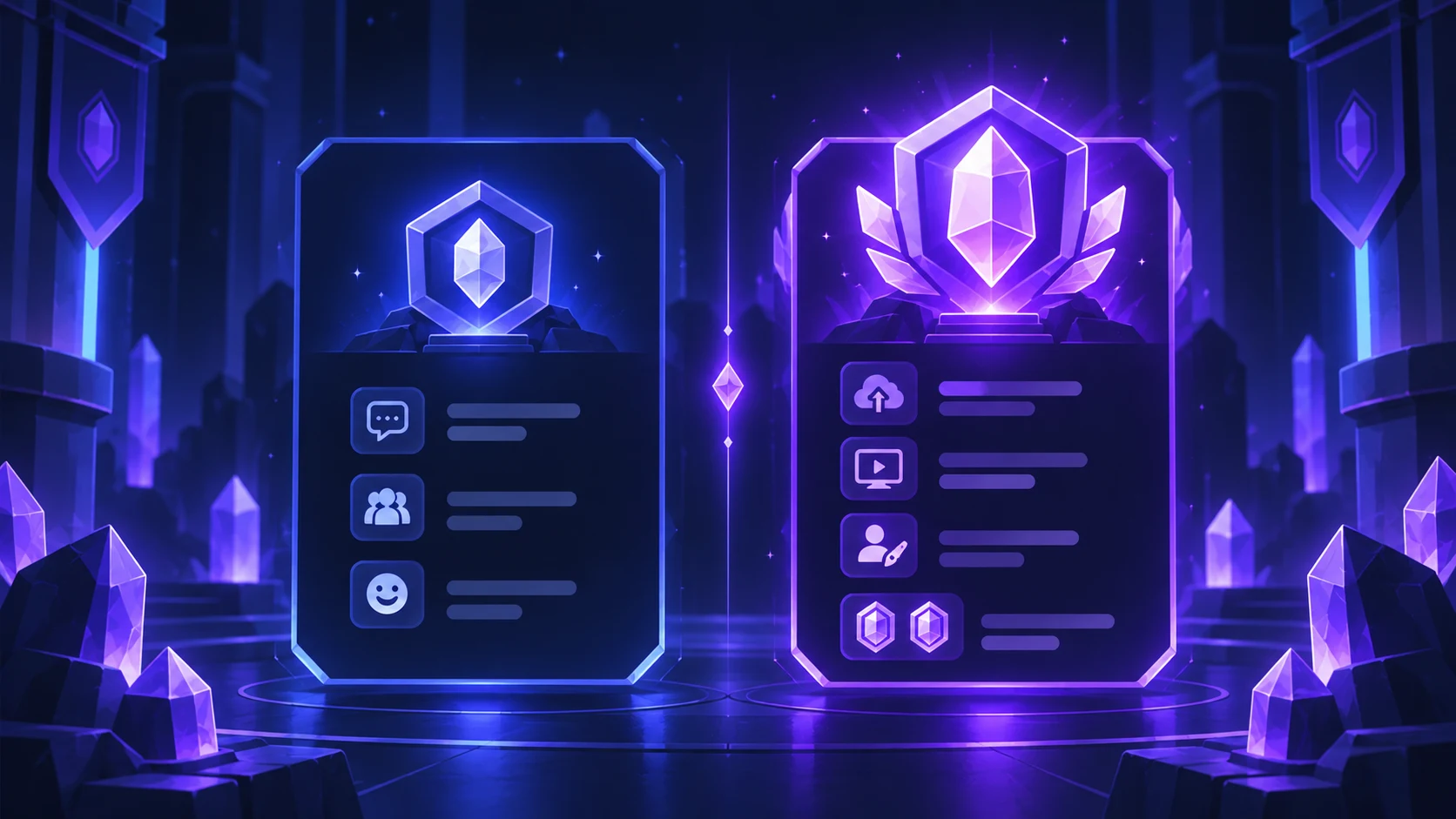
Discord Nitro vs Nitro Basic: What’s the Difference?
Compare Discord Nitro and Nitro Basic, including Server Boosts, uploads, streaming, profile features, pricing, and the key differences between each plan.
How to Fix Discord Screen Share Black Screen
Work through the most reliable checks when Discord streams audio but shows a black or frozen picture.
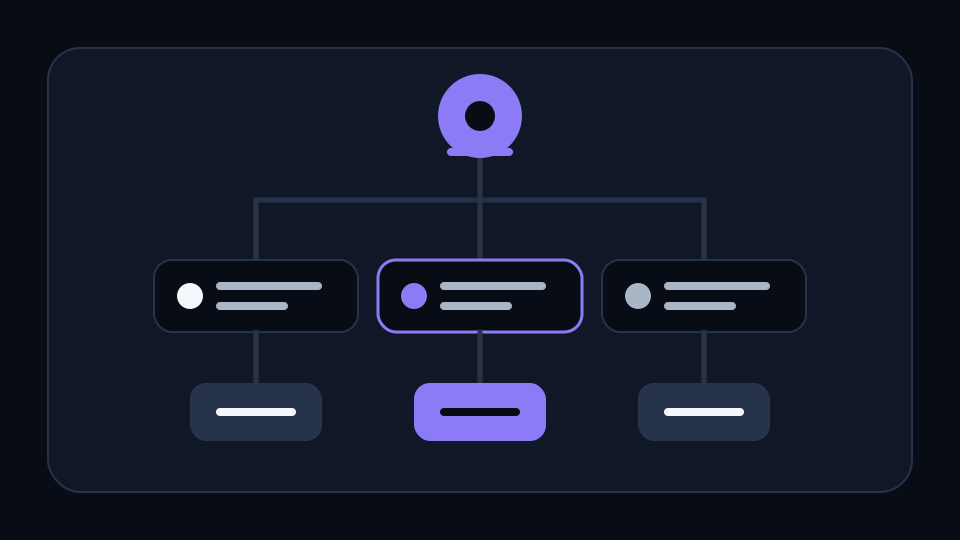
How to Create and Manage Discord Roles
Build a clear role hierarchy and assign only the permissions each group actually needs.