Discord Stream Lagging or Low FPS: How to Fix It
Fix Discord stream lag, stuttering, or low FPS with practical checks for connection speed, stream quality, hardware acceleration, GPU drivers, background apps, and Discord settings.
On this page
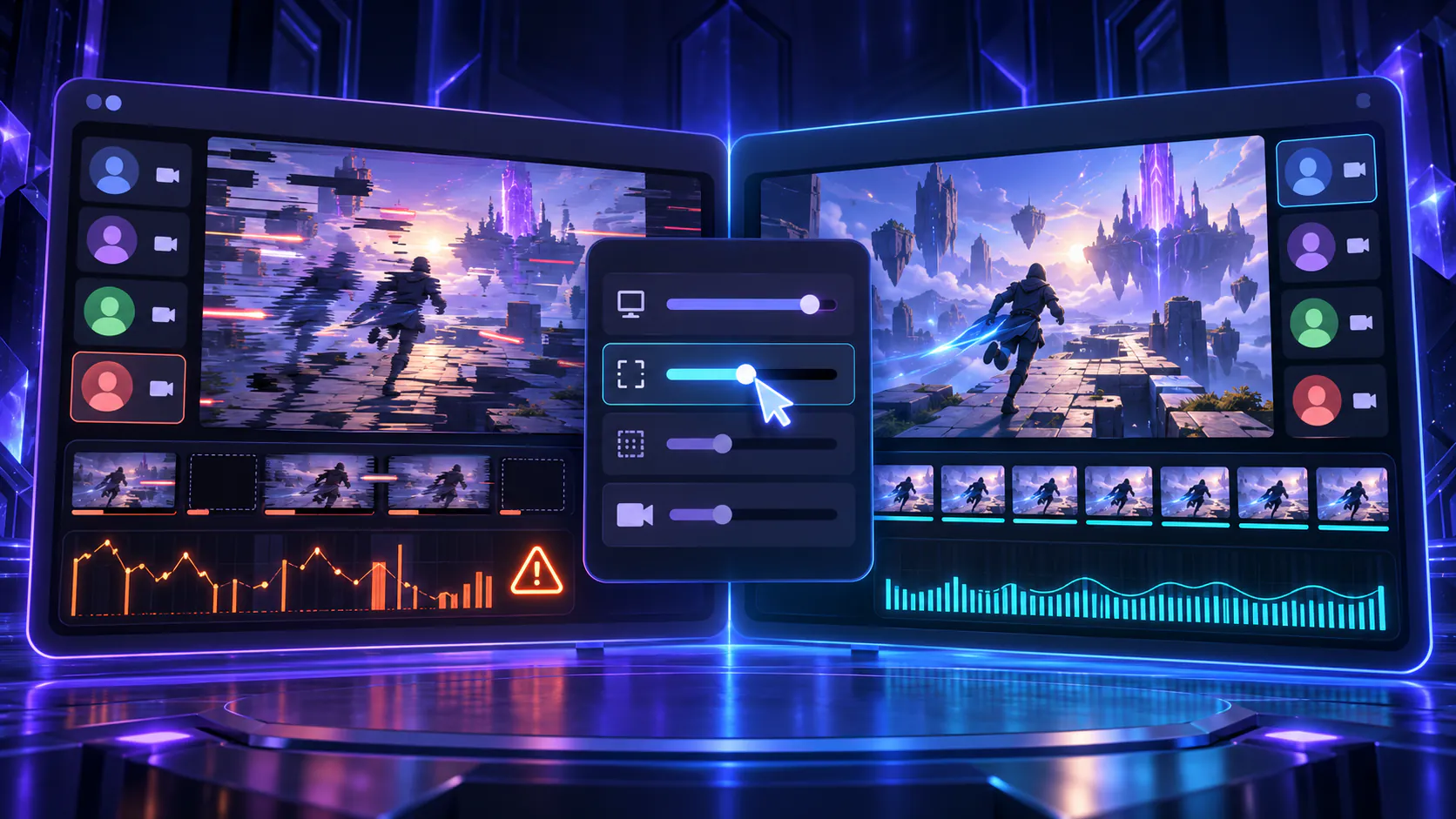
A Discord stream can look choppy, freeze, drop frames, or turn blurry even when the game appears smooth on the computer sending it. Streaming adds a separate capture, encoding, and upload workload, so the cause may be the connection, the game’s resource use, the GPU, Discord’s stream settings, or a viewer’s device.
Start with a repeatable test and change one thing at a time. A lower stream setting may help a limited connection or overloaded encoder, but no single setting fixes every lagging stream.
Quick Checks First
- Stop the stream, fully quit Discord and the game, then reopen Discord before the game.
- Ask at least two viewers whether they see the same stutter, and check Discord Status for a relevant incident.
- Pause large downloads, cloud sync, backups, and other uploads on your network.
- Disconnect a personal VPN for one test, then restore it if nothing changes.
- Lower the stream resolution or frame rate once and compare the same scene.
- Close optional recording, monitoring, and overlay tools temporarily.
- Test a simple application or a second game. If only one source lags, focus on that source rather than changing the whole system.
If the shared picture is black rather than slow, use the screen-share black screen checks instead.
1. Restart Discord and the Game Completely
Stop the stream and quit the game. Closing Discord’s window may leave it running, so quit it from the notification area on Windows or the menu bar on macOS. Use Task Manager or Force Quit only if an application will not close, and end only processes you recognize.
Open Discord first, wait for it to finish loading, then launch the game and start a fresh stream. This clears a stalled capture or encoding session and gives Discord another opportunity to detect the game correctly.
2. Check Who Is Actually Affected
Ask two viewers to watch the same short test. If everyone sees freezes at the same moment, investigate the sender’s connection, system load, and stream configuration. If only one viewer has trouble, their connection or device may be the limiting side.
Also check Discord Status. A relevant service incident can affect streams or calls for multiple people, and reinstalling the desktop app will not repair a service-side problem. If Discord is healthy and the issue repeats, continue with local checks.
3. Check Upload Stability, Not Just Download Speed
Your computer must send the encoded video out continuously. A fast download result does not rule out weak upload performance, packet loss, Wi-Fi interference, or brief latency spikes. Those interruptions can cause frame drops, freezing, and changing picture quality.
For one controlled test, use Ethernet if practical or move closer to the router. Pause cloud backups, file uploads, game updates, and high-traffic activity on other devices. Compare without a personal VPN, because it changes the stream’s network path. Restore it if the result is unchanged, and do not alter a school or workplace network without its administrator.
Discord does not publish one durable upload-speed requirement for every stream quality and scene. Stability and available outgoing capacity matter alongside the headline speed.
4. Lower the Stream Resolution or Frame Rate
Discord’s Go Live and Screen Share guide explains that stream resolution and frame rate can be adjusted where those controls are available. Stop or open the current stream controls, choose one lower resolution or frame-rate option, and replay the same movement-heavy scene.
Lowering resolution reduces how many pixels must be captured, encoded, and sent. Lowering frame rate reduces how many images must be processed each second. Either can ease network and encoding pressure. Available choices depend on the client, platform, and account, so use the options Discord actually presents rather than following an old menu screenshot.
5. Close Background Apps Competing for Resources
Open Task Manager, Activity Monitor, or the operating system’s equivalent and look for unusually heavy CPU, GPU, disk, or network use. Common comparison targets include:
- browsers with many active tabs or video playback;
- game launchers downloading updates;
- cloud backup or file-sync applications;
- recording and streaming software; and
- video editors, virtual machines, or other demanding tools.
Close one optional application normally, then repeat the same stream test. Do not end unfamiliar system, driver, or security processes. Reopen an application if closing it makes no difference.
6. Check the Game’s Own Performance
Discord needs spare resources to capture and encode video. A game can use nearly all available CPU or GPU capacity while still feeling acceptable locally, leaving too little headroom for the stream.
Watch the game’s frame rate and system usage while streaming. As a diagnostic test, cap the game’s frame rate or lower one demanding option such as shadows, ray tracing, render scale, or resolution. Keep the stream settings unchanged during that comparison. If the stream improves, balance game quality and streaming headroom instead of applying unrelated Discord changes.
7. Test Hardware Acceleration Both Ways
Hardware acceleration changes how Discord uses graphics hardware for video and interface work. Discord’s current voice, video, and streaming guidance recommends testing it when a stream lags, but the best state can vary by GPU, driver, and error.
Find the hardware-acceleration control in Discord’s voice, video, or advanced settings, note its current state, and switch it once. Allow Discord to restart if prompted, then repeat the same test. Keep the setting that is stable; restore the original state if neither result is better. Do not change a driver or several game settings during the same comparison.
8. Update Discord
Fully quit and reopen Discord so its updater can run, then retry the stream. On supported desktop clients, refreshing the app may also check current client files, but a complete restart is the clearer test.
If the updater fails, do not download a mirror or modified client. Use the site’s focused update troubleshooting or get a current installer from Discord’s official download page. Test streaming before restoring optional custom tools.
9. Update the GPU Driver
The graphics driver participates in game rendering, capture, and hardware video encoding. A driver problem can affect the stream even when ordinary Discord chat works.
For a laptop or prebuilt PC, check the manufacturer’s support page first. Otherwise use the official source for your exact NVIDIA, AMD, or Intel hardware. Install a stable compatible release, restart if requested, and repeat the same test. Avoid third-party driver-download sites and automatic “driver repair” utilities.
10. Check Windows Graphics Assignment on Multi-GPU PCs
Some laptops and desktops have both integrated and dedicated graphics. If the game and Discord use an unexpected GPU combination, capture or encoding behavior can differ.
On Windows 11, open Settings > System > Display > Graphics. Microsoft’s graphics settings guide documents the per-app choices. Record the current preference for Discord and the game, make one controlled change, save it, and restart both applications. There is no universally correct assignment; restore the original values if the stream does not improve.
11. Disable Conflicting Overlays Temporarily
An overlay, recorder, or monitoring tool may interact with the same game’s rendering and capture path. Exit one optional tool through its normal menu, restart the game, and test again. Possible comparisons include the NVIDIA overlay, Xbox Game Bar, Steam Overlay, performance monitoring software, and another recording or streaming overlay.
This is a diagnostic test, not proof that the tool is defective. Re-enable it when the result is unchanged. If Discord’s own game overlay is involved, disable it only for the affected game and use the Discord Overlay troubleshooting guide for the separate overlay issue.
12. Review Only Relevant Discord Video Settings
Confirm that Discord is sharing the intended game, application window, or display. If the source changed after the game restarted, stop the stream and select it again. Review the stream-quality control and the video hardware-acceleration state you tested earlier.
Avoid changing microphone processing, input sensitivity, notification, or unrelated voice controls to fix dropped video frames. Labels can move between Discord versions, so use settings search where available and change only controls clearly related to video, screen share, capture, or streaming.
13. Test Another Game or Application
Share a simple application window, then a second game if available. A smooth test application shows that Discord can stream and points toward the original game’s load, renderer, display mode, or capture compatibility. If every source stutters for multiple viewers, a Discord-wide, system-wide, or network cause is more likely.
Keep the same viewer, channel, and stream quality during this test. Changing all of them at once makes the comparison less useful.
14. Try Windowed or Borderless Mode
Exclusive fullscreen and borderless or windowed modes can use different presentation and capture paths. Discord’s Windows capture guidance recommends borderless mode for the best screen-share compatibility with its Windows capture method.
Switch the affected game to borderless or windowed mode for one test, reselect its window in Discord, and compare. This will not fix every network or performance issue, so restore your preferred mode if the stream behaves the same.
15. Clear Discord Cache After Simpler Fixes Fail
Fully quit Discord first. On Windows, press Windows + R, enter %AppData%\discord\Cache, and delete only the contents of that exact Cache folder. On macOS, use Finder > Go > Go to Folder and open ~/Library/Application Support/discord/Cache, then remove only that folder’s contents. Discord documents these locations in its general troubleshooting guide.
If the folder is absent, skip this step. Do not delete AppData, Roaming, Application Support, game saves, or unrelated application folders. Reopen Discord and run one clean test.
16. Reinstall Discord as the Final App-Level Step
Reinstall only after the stream lags across multiple sources and the earlier comparisons fail. Confirm that you can sign back in, quit Discord completely, and uninstall it through the operating system’s normal app controls. Restart the computer, then install a fresh copy from discord.com/download.
Test with default settings before restoring optional overlays or recorders. A normal reinstall does not require a registry cleaner, unofficial build, replacement DLL, broad AppData deletion, or changes to Windows security. If Discord closes instead of merely stuttering, follow the Discord crashing checks.
Why Is My Discord Stream Lagging but My Game Is Smooth?
The game and the outgoing stream are related but separate workloads. Your computer first renders the game, then Discord captures frames, encodes them into video, sends that video through the network, and relies on each viewer’s device to receive and decode it. Discord’s streaming technology overview describes this multi-stage path.
The game can therefore remain smooth while the stream loses frames because upload conditions fluctuate, the encoder lacks headroom, capture adds overhead, or the selected stream quality is too demanding for the current combination. Ask multiple viewers, lower one stream setting, and monitor system and network use to identify which stage changes the result.
Why Does Discord Stream Look Blurry or Pixelated?
Streaming video is compressed before it reaches viewers. Limited or unstable network capacity can make the stream reduce detail, while high resolution or frame rate gives the encoder more visual information to process. Fast camera movement, particles, foliage, and other constantly changing scenes are harder to compress cleanly than a mostly static screen.
Compare a still menu with a movement-heavy scene. If only motion becomes blocky, try a lower frame rate or resolution and reduce competing uploads. A blurry picture is not automatically a GPU failure, and increasing every quality setting can make instability worse rather than better.
Discord Stream Lagging Only for One Viewer
If everyone else sees a smooth stream, ask the affected viewer to restart Discord, stop other downloads or video playback, and try a wired or more stable Wi-Fi connection. They can also leave and rejoin the stream, update Discord, and compare another stream in the same channel.
The viewer’s device must receive and decode the video, so an overloaded device, unstable connection, or local Discord problem can affect only that person. Avoid changing the sender’s GPU drivers or game settings until at least one other viewer confirms the same symptom.
What If the Stream Still Lags?
Record the operating system, Discord version, GPU and driver version, connection type, game and display mode, chosen stream quality, and whether multiple viewers are affected. Note whether the problem appears in every source or only one game, and whether lowering stream quality or game load changes it.
That comparison gives Discord Support useful evidence and avoids repeating broad system changes. Keep security software, the firewall, and essential Windows services enabled while gathering it.
Frequently Asked Questions
Why is my Discord stream so laggy?
The outgoing connection may be unstable, the game or another app may be using most system resources, or the selected stream quality may exceed the current encoding or network headroom. Test the same scene after lowering one stream setting.
Why does Discord streaming lower my FPS?
Capturing and encoding the game adds CPU, GPU, memory, and driver work. Cap the game's frame rate or lower one demanding game setting to see whether leaving more headroom improves both the game and stream.
Should I lower Discord stream resolution or FPS?
Yes, as a diagnostic comparison. Lower resolution reduces pixel workload, while lower FPS reduces the number of frames processed and sent. Keep the lower setting only if it produces a better result.
Can Hardware Acceleration cause Discord stream lag?
It can help or hurt depending on the hardware, driver, and problem. Switch it once, restart Discord if prompted, and compare the same stream. Restore the original state if there is no improvement.
Why is my stream smooth for me but laggy for viewers?
Your local game view does not pass through the entire capture, encode, upload, delivery, and viewer-decoding path. A problem in any later stage can affect viewers without making the game itself stutter.
Can Wi-Fi cause Discord screen share stuttering?
Yes. Interference, weak signal, congestion, and packet loss can interrupt the outgoing video even when normal browsing feels fine. Compare Ethernet or a stronger Wi-Fi signal before changing deeper settings.
Why does my Discord stream become blurry during movement?
Movement-heavy scenes change more of every frame and are harder to compress. Unstable bandwidth or an ambitious resolution and frame rate can make the encoded picture lose detail during fast action.
Should I reinstall Discord if streaming still lags?
Only after restarts, connection checks, lower stream quality, resource tests, updates, driver checks, and targeted cache cleanup fail across multiple sources. Reinstall from Discord's official download page.
Related guides
Continue with another practical explanation from the guide index.
Discord Overlay Not Working: How to Fix It
Fix Discord Overlay when it isn't working with practical checks for overlay settings, supported games, permissions, hardware acceleration, conflicts, and Windows issues.
Discord Keeps Crashing: How to Fix It
Fix Discord when it keeps crashing with practical checks for updates, corrupted cache, hardware acceleration, overlays, drivers, startup conflicts, and reinstalling safely.
Discord Mic Not Working: How to Fix It
Fix a Discord mic that isn't working with practical checks for input devices, permissions, input mode, sensitivity, Windows settings, browser access, and audio drivers.