Discord Overlay Not Working: How to Fix It
Fix Discord Overlay when it isn't working with practical checks for overlay settings, supported games, permissions, hardware acceleration, conflicts, and Windows issues.
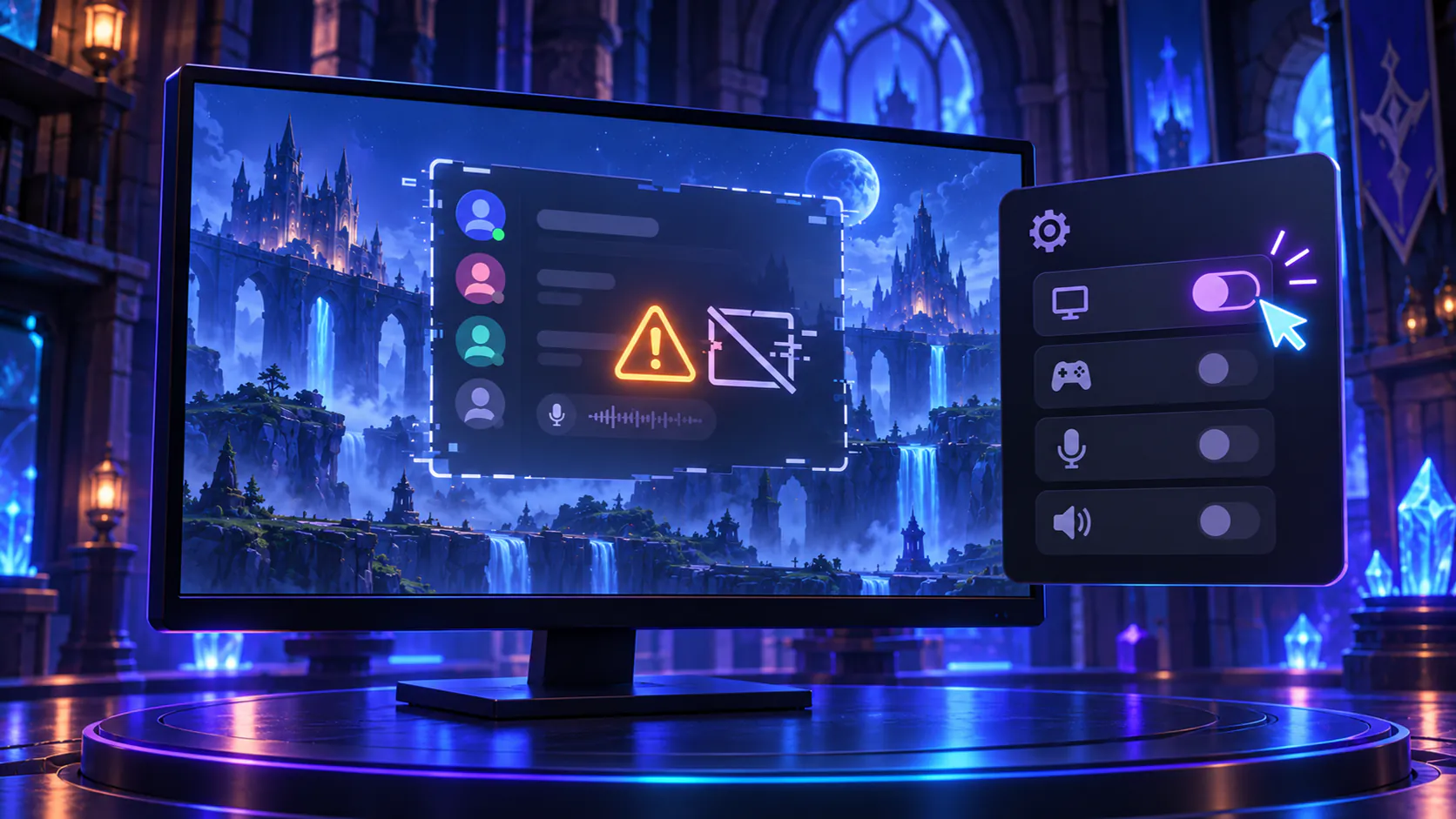
On this page
Discord Overlay can be enabled and still fail to appear if Discord has not detected the game, the game-specific control is off, the game and Discord use different permission levels, or another overlay is competing for the same view. Display mode and game compatibility matter too.
The built-in Game Overlay is a Windows desktop feature for Windows 10 and 11, not the browser, mobile, macOS, or Linux. Start with the quick checks and change one setting at a time.
What Discord Overlay Does
Discord’s Game Overlay places selected Discord controls, voice participants, notifications, or chat over a running game. It should appear while the game is focused when you use the overlay shortcut configured in Discord. Exactly what stays visible depends on your overlay widgets and notification settings.
An absent overlay is different from a working overlay that shows no messages. Muted conversations, Streamer Mode, hidden widgets, or saved position settings can make the display look empty even though the overlay itself opened.
Quick Checks First
- Confirm you are using the Discord desktop app on Windows 10 or 11.
- Open Discord’s overlay settings and make sure the main overlay control is enabled.
- Start the affected game and check its entry under Discord’s registered or detected games.
- Press the overlay shortcut shown in your Discord settings rather than assuming it still uses the default.
- Test the game in windowed or borderless-windowed mode.
- Fully close both Discord and the game, then reopen Discord first.
- Temporarily exit one other overlay or monitoring tool and test again.
- Try a second supported game. A one-game failure is more likely to be a compatibility or game-setting issue than a broken Discord installation.
1. Check Whether Discord Overlay Is Enabled
Open User Settings in the desktop app and find Game Overlay or the similarly named overlay section. Use settings search if it has moved. Turn on the main overlay switch and review its assigned shortcut.
Turn the setting off and back on once, restart Discord, and test. If the overlay makes the game unstable, turn it off for that game instead of repeatedly forcing it to load.
2. Enable Overlay for the Specific Game
The global overlay control and a game’s individual control may be separate. With the game running, find Registered Games, Detected Games, or the equivalent area under gaming or activity settings. If your Discord version shows a per-game overlay control beside the detected game, confirm it is enabled. Labels and icons vary between releases, so do not rely on an icon color from an older tutorial.
3. Fully Restart Discord and the Game
Quit the game, then quit Discord from its notification-area icon. Closing the Discord window alone can leave its background and overlay processes running. Open Task Manager only if needed and end entries clearly named Discord; do not stop unrelated game, driver, or Windows processes.
Reopen Discord first, wait for it to finish loading, then start the game. This gives Discord a fresh opportunity to detect the new game process and attach the overlay. If Discord will not reopen, use the focused Discord launch troubleshooting guide before continuing.
4. Match Discord and Game Permission Levels
On Windows, an ordinary app may be unable to send shortcuts or interact normally with a game running at a higher privilege level. Start by running both Discord and the game normally. Check the game shortcut and launcher to make sure Run this program as an administrator has not been enabled unnecessarily.
If the game genuinely requires elevation, close both applications and make one controlled test with matching permission levels. Do not configure Discord and every game to run as administrator permanently. Return to standard launches if the comparison does not help.
Some installations may offer the official, experimental Discord System Helper when an elevated game blocks the overlay-toggle or push-to-talk keybinds. Use it only if Discord presents the option. Do not download a similarly named tool elsewhere or weaken User Account Control.
5. Check Whether Discord Recognizes the Game
Keep the game open and return to Discord’s registered-games area. The running game should appear as detected activity. If Discord offers an Add it or add-game control, select the actual game process rather than its launcher, updater, or an unrelated window.
Restart both apps after adding it, then recheck the game-specific overlay control. If the executable changes after every update or the game never appears, Discord may not support reliable detection for that title. Do not rename executables or download third-party hooks to force recognition.
6. Move or Reset the Overlay Display
The overlay may be active but outside the area you expect, hidden behind a disabled widget, or configured to show only limited information. In Discord’s overlay settings, use the preview where available and choose a different on-screen corner. Review voice, notification, message, and show-or-hide controls.
While a game is focused, open the overlay and check whether the relevant window or widget is pinned or visible. If your Discord version offers a reset for overlay position or settings, use that targeted reset and restart the game. Avoid deleting configuration files manually just to restore a widget position.
7. Temporarily Disable Conflicting Overlays
More than one tool may try to draw information over the same game. For one test, exit a single optional overlay through its normal settings or tray menu, restart the game, and check Discord again. Common comparison targets include:
- NVIDIA’s in-game overlay;
- Xbox Game Bar;
- Steam Overlay;
- MSI Afterburner with RivaTuner Statistics Server; and
- recording, performance-monitoring, chat, or launcher overlays.
Re-enable the tool if Discord still does not appear, then test the next one. This identifies a conflict without permanently giving up useful software. If the game crashes when Discord Overlay starts, disable it for that game and follow the Discord crashing checks rather than stacking more overlays into the same test.
8. Test Hardware Acceleration Carefully
Hardware acceleration changes how Discord uses the GPU for its own interface. It is not always responsible for overlay failures, but switching it once can reveal a Discord-rendering or driver interaction.
Open User Settings > Advanced, note the current Hardware Acceleration state, change it, and allow Discord to restart. Test the same game in the same display mode. If nothing changes, restore the original state. Do not combine this test with a driver change or several game-setting changes, because you will not know which one affected the result.
9. Update Discord
Fully quit and reopen Discord so its updater can run, then test again. If the client stays stuck in an update loop, follow the Discord Update Failed guide rather than installing files from a mirror.
Use only Discord’s official download page for a fresh installer. Switching release channels is not a necessary fix and can make comparisons less clear.
10. Update the Graphics Driver
The game, Windows, Discord, and the graphics driver all participate in presenting frames and overlays. An outdated or faulty driver can affect one game or rendering mode without breaking the rest of Discord.
For a laptop or prebuilt PC, check the manufacturer’s support page first. Otherwise use the official driver source for your exact NVIDIA, AMD, or Intel graphics hardware. Install a stable package, restart Windows if requested, and retest.
Avoid generic driver-download sites and automatic “driver repair” tools. If the issue began immediately after a driver update, check the hardware maker’s support information for a corrected release rather than installing a random older package.
11. Review Security Software Without Disabling Protection
If security software blocked a Discord component, its event, quarantine, or protection history should show an entry near the time of failure. Keep protection enabled while you check.
Confirm that the file belongs to an official, signed Discord installation before allowing it. If it is a false positive, allow only the identified trusted Discord component according to the security vendor’s instructions. Do not disable antivirus or the Windows firewall, exclude all of AppData, or allow an unknown executable. On a managed PC, ask the administrator to review the event.
12. Clear Discord Cache Only After Earlier Fixes Fail
Fully quit Discord. Press Windows + R, enter %AppData%\discord\Cache, and open that exact folder. Delete only its contents, then reopen Discord and the game. Discord will recreate the temporary cache data it needs.
If the folder does not exist, skip this step. Do not delete %AppData%, the Roaming folder, the entire Discord folder, game data, or unrelated application files. Discord’s general troubleshooting guide documents the targeted cache location.
13. Reinstall Discord as the Final App-Level Step
Reinstall after the settings, restart, privilege, conflict, update, driver, and cache checks have failed in more than one otherwise supported game. Confirm that you can sign back in, then quit Discord and uninstall it through Settings > Apps > Installed apps.
Restart Windows and install a fresh copy from discord.com/download. Test the overlay with default Discord settings before restoring custom shortcuts or optional utilities. A standard reinstall replaces application files; it does not require a registry cleaner, unofficial build, broad AppData deletion, or replacement DLL.
When Discord Overlay May Not Work at All
Discord does not promise identical overlay behavior in every title or display mode. The overlay may remain unavailable when:
- the application is not a supported or detectable game;
- the game uses true exclusive fullscreen instead of windowed or borderless fullscreen;
- anti-cheat or game security intentionally prevents overlays from attaching;
- the game’s current renderer or graphics API is incompatible with the available Discord overlay implementation;
- the game itself restricts third-party overlays; or
- Discord is running on an unsupported platform or client.
Discord’s overlay guidance recommends windowed or borderless-windowed mode when fullscreen prevents the overlay. Never disable anti-cheat, game security, or account protections to force compatibility. Check the game’s official support information instead; sometimes the safe answer is to use Discord on a second screen or switch windows normally.
Why Does Discord Overlay Work in Some Games but Not Others?
Each game has its own executable structure, display modes, renderer, update cycle, and security rules. Discord may detect one title automatically while another needs to be added, and two games can handle third-party overlays differently even on the same PC.
Compare the working and failing games under Registered Games, test the failing one in borderless mode, and check its official overlay or anti-cheat documentation. If every other game works, avoid system-wide changes; focus on that game’s detection, settings, and current compatibility.
Discord Overlay Works, but I Can’t See It
First press the shortcut shown in Discord while the game has focus. Then switch temporarily to windowed or borderless mode and choose a different overlay position. Open the overlay settings preview and confirm that the widget you want is enabled, visible, and pinned where applicable.
If the overlay opens but messages do not appear, check whether the conversation is muted, message display is disabled, or Streamer Mode is hiding notifications. Also remember that sharing an individual game window may intentionally omit the overlay even though it is visible to you; this is a different issue from the overlay failing to launch. If the stream itself is black, use the screen-share black screen guide.
What If the Overlay Still Does Not Work?
Record the Discord version, Windows version, game name, display mode, GPU and driver version, whether Discord detects the game, and which other overlays were active. Note whether the shortcut fails completely or the overlay opens without visible widgets.
Test one other game before contacting Discord Support. That comparison and a short list of completed steps are more useful than repeated reinstalls or broad system changes.
Frequently Asked Questions
Why is my Discord Overlay not showing?
The main overlay setting or the game's individual control may be off, Discord may not recognize the game, the apps may use different privilege levels, or the game's display mode may be incompatible. Check those items before clearing files or reinstalling.
Does Discord Overlay work with every game?
No. Detection, rendering, display mode, anti-cheat, and game-specific restrictions can affect compatibility. Discord Overlay is also limited to the supported Windows desktop client.
Why does Discord Overlay work in windowed mode but not fullscreen?
True exclusive fullscreen can prevent other applications from drawing over the game. Borderless-windowed or windowed fullscreen often preserves the fullscreen appearance while allowing the overlay to display.
Can NVIDIA or Steam Overlay conflict with Discord Overlay?
They can interact poorly in some games, but a conflict is not guaranteed. Temporarily exit one overlay, restart the game, and test Discord. Re-enable it if the result does not change.
Does Hardware Acceleration affect Discord Overlay?
It can affect Discord's rendering path, so toggling it once is a useful diagnostic comparison. It is not a universal fix; restore the original setting if the same game still fails.
Should I reinstall Discord if Overlay still does not work?
Reinstall only after checking global and per-game settings, detection, display mode, privilege levels, conflicts, updates, drivers, and cache. A reinstall will not make an unsupported or intentionally restricted game compatible.
Related guides
Continue with another practical explanation from the guide index.
Discord Keeps Crashing: How to Fix It
Fix Discord when it keeps crashing with practical checks for updates, corrupted cache, hardware acceleration, overlays, drivers, startup conflicts, and reinstalling safely.
Discord Mic Not Working: How to Fix It
Fix a Discord mic that isn't working with practical checks for input devices, permissions, input mode, sensitivity, Windows settings, browser access, and audio drivers.
Discord No Route Error: How to Fix It
Fix Discord's No Route error with practical checks for network problems, VPNs, firewalls, DNS, router issues, voice connections, and Discord outages.