How to Make a Private Discord Channel
Learn how to make a private Discord channel, choose who can view or use it, configure role and member permissions, and avoid common access mistakes.
On this page
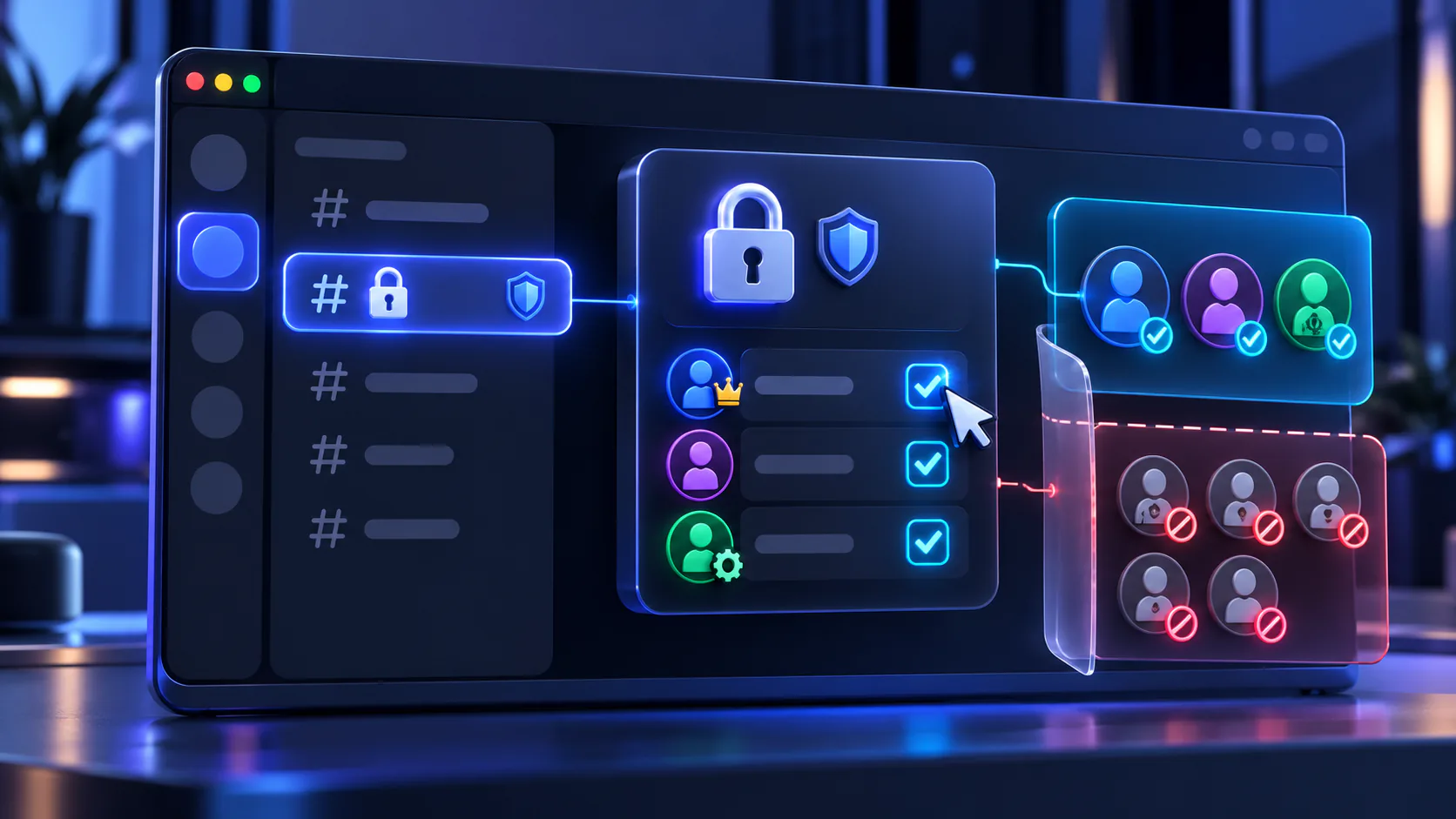
A private Discord channel is a text or voice channel that some server members cannot see while selected roles or members can access it. Discord creates that privacy with channel permissions, not with a separate type of hidden channel.
The usual setup denies View Channel to @everyone, then allows View Channel for the roles or individual members who belong inside. Other permissions decide what those people can do after they enter.
Quick Private Channel Setup Overview
- Create a channel or open the settings for an existing one.
- Open its permission controls.
- Select @everyone and Deny View Channel.
- Add each role or member that should have access.
- Allow View Channel for those entries.
- Review Send Messages for text channels or Connect and Speak for voice channels.
- Save the changes and inspect any category sync warning.
- Test the result as a non-administrator.
This pattern is simple, but every role and member override still matters. Do not assume that one Deny ends the permission calculation.
What Makes a Discord Channel Private?
Privacy normally means ordinary members cannot view the channel while an approved group can. View Channel is the key permission: if a member does not have it, the channel is hidden from that member’s channel list.
Permissions such as Send Messages, Read Message History, Connect, and Speak control use after visibility has been decided. Denying Send Messages alone creates a read-only text channel, not a hidden one. Denying Connect alone can leave a voice channel visible but prevent entry.
Discord reaches the final result from several layers:
- server permissions from @everyone;
- permissions granted by all assigned roles;
- category or channel overrides for @everyone;
- applicable role-specific channel overrides; and
- a member-specific channel override, if present.
Administrator bypasses channel overwrites. For a detailed explanation of how Allow, Deny, Neutral, and multiple roles interact, read Discord Permissions Explained.
Private Discord Channel vs Role-Restricted Channel
In practice, a private channel is usually a role-restricted channel. Discord hides it by restricting View Channel and then restoring access for an approved role or member.
The phrase role-restricted describes the method: a reusable role controls entry. Private describes the outcome: only the intended audience can see or use the channel. Member-specific access can produce the same outcome without a dedicated role, but it becomes harder to maintain as the group grows.
How to Create a Private Text Channel
You need permission to manage the channel or server. On desktop, web, or mobile, find the control for creating a channel and choose a text channel. Discord’s labels and menu positions can change, so focus on the permission result rather than one exact button sequence.
- Create and name the text channel.
- Open the new channel’s settings and permission controls.
- Choose @everyone and set View Channel to Deny.
- Add the role that should enter, then set its View Channel permission to Allow.
- If no role fits, add an individual member and allow View Channel for that member.
- Review Send Messages, Read Message History, file, thread, and mention permissions for the approved audience.
- Save, then test visibility and posting.
Discord may offer a private-channel option during creation. It can establish the basic restriction, but inspect the resulting overrides and confirm that only the correct roles or members have access.
How to Make an Existing Channel Private
You do not need to replace an existing channel. Open its settings and edit its permissions using the same pattern: deny View Channel for @everyone, then allow it for the intended roles or members.
Audit existing overrides before adding sensitive information. An old role-specific or member-specific View Channel Allow may continue to grant access after the @everyone Deny. Also check whether the channel is synced with its category; changing the channel directly may make it unsynced.
How to Make a Private Voice Channel
Voice privacy uses three separate permissions:
- View Channel controls whether the voice channel appears.
- Connect controls whether a member can join it.
- Speak controls whether a connected member can talk.
For a fully hidden voice channel, deny View Channel to @everyone, then allow View Channel and Connect for the approved role or members. Review Speak as a separate choice.
For a visible but locked room, leave View Channel available and deny Connect to the audience that should not join. Someone can therefore see a voice channel without being able to enter, or enter without being allowed to speak. Decide which experience you want instead of treating all three permissions as one setting.
How to Hide a Discord Channel From Everyone Except One Role
The cleanest setup is a dedicated role-based override:
- @everyone: View Channel — Deny
- approved role: View Channel — Allow
Then assign that role only to the people who need access. For a text channel, decide whether the role should also be allowed to send messages. For a voice channel, review Connect and Speak.
This works because the role-specific Allow is evaluated after the channel’s @everyone override. The role does not need to be the highest role. Avoid adding unrelated roles to the channel, and check whether an existing member-specific override changes the result for anyone.
If you need to create or assign the access role first, follow How to Create and Manage Discord Roles.
How to Make a Discord Channel Private for One Person
Deny View Channel for @everyone, add the specific member to the channel permissions, and allow View Channel for that member. Then configure Send Messages or voice permissions according to what the person should be able to do.
A member-specific override is evaluated after applicable role overrides, so it can change the result for that person. Review the member entry carefully if their access differs from everyone else.
This method is appropriate for a genuinely one-person channel or a short-lived exception. For a recurring purpose or a group that may change, a dedicated role is easier to audit and transfer than many individual overrides.
How to Create a Private Channel for Selected Members
Choose between a dedicated role and individual member overrides:
- Dedicated role: create one purpose-based role, allow it to view the channel, and assign it to every approved member. This scales well and keeps access visible in one place.
- Member-specific overrides: add each person directly. This can suit a very small, temporary, or unique group but creates more entries to review and remove later.
Do not mix both methods without a reason. A direct member Allow can retain access after you remove the person’s group role.
How to Create a Staff-Only Channel
For a moderator or administration workspace, deny View Channel to @everyone and allow it for each staff role that genuinely needs access. Allow Send Messages for staff who should participate, and separately review permissions for threads, message history, files, and mentions.
Do not grant Administrator just to open the staff channel. Administrator grants every permission and bypasses all channel overwrites. Use the narrow staff permissions required for the person’s duties instead.
Discord’s native permission system is enough to make the channel private; a permission bot is not necessary.
How Category Permissions Affect Private Channels
A category can hold the same types of @everyone, role, and member overrides as a channel. A synced child channel matches the category’s permissions and receives later category changes.
This is useful for a private staff category. Deny View Channel to @everyone at the category, allow the appropriate staff roles, and keep the staff channels synced. One deliberate category change can then update the whole private area.
Before changing a category, review every synced child channel. A broad role Allow added to the category can expose all synced channels to that role. Similarly, removing an approved role may close every synced channel at once.
What Happens When Channel Permissions Are Not Synced With the Category?
An unsynced channel has permission overrides that differ from its category. Later category changes do not automatically update that channel, so it can remain private, public, or restricted in a different way from its neighbors.
Unsynced permissions are sometimes intentional, such as one confidential room inside a broader staff category. They can also be an overlooked source of access problems. If you choose a sync control, Discord replaces the channel’s differing setup with the category’s current permissions, so record any exception you need before syncing.
How Private Channel Permissions Are Resolved
Start with server permissions from @everyone and every assigned role. Discord then applies the channel’s @everyone override, combines the relevant custom-role overrides, and finally applies a member-specific override if one exists. Administrator bypasses this normal channel calculation.
This is why neither “the highest role wins” nor “Deny always wins” is a safe rule. For example, after @everyone is denied View Channel, an Allow on an approved role can restore visibility. If two assigned roles have conflicting channel overrides, Discord combines that role layer rather than using role height as a tiebreaker. A later member-specific override can change the result again.
Keep the setup understandable: one restricted baseline, a small number of purposeful role Allows, and member exceptions only where needed.
How to Test Whether a Channel Is Really Private
Test every result that matters, not only whether the channel appears:
- Use View Server As Role where it is available to preview an ordinary role.
- Confirm with a trusted non-administrator member or an account you are permitted to use.
- Check that an unauthorized member cannot see the channel.
- Check that an approved member can see it and perform only the intended actions.
- For voice, test View Channel, Connect, and Speak separately.
- Recheck category sync and every direct member override.
Testing as the server owner or an administrator gives a misleading privacy result because their access bypasses ordinary channel restrictions. Never share an owner account, password, or Discord token for testing.
Why Can Someone Still See My Private Discord Channel?
Trace that member’s complete access instead of looking only at @everyone. Common causes include:
- another assigned role has a channel-specific View Channel Allow;
- the member has a direct View Channel Allow;
- the member is the server owner or has Administrator;
- the channel is unsynced from the category you edited;
- the channel override and category override are not the ones you expected;
- only Send Messages or Connect was denied, leaving View Channel available; or
- a broad staff, bot, or access role was assigned accidentally.
Also check the reverse problem. If an approved member cannot see the channel, confirm that they actually have the intended role, that View Channel is allowed at the right category or channel, and that no later member-specific Deny removes access.
Common Private Channel Mistakes
- Forgetting to deny View Channel for @everyone
- Denying Send Messages and assuming the text channel is hidden
- Making a voice channel visible when the goal was to hide it completely
- Giving a broad or decorative role a View Channel Allow
- Using Administrator to solve a narrow access problem
- Assuming role hierarchy alone controls channel access
- Overlooking a conflicting member-specific override
- Testing only as the owner or an administrator
- Editing a category without checking its synced channels
- Expecting an unsynced channel to receive later category changes
- Keeping stale individual member overrides after a group changes
Private Channel Best Practices
Prefer roles for teams and recurring groups, use direct member overrides sparingly, and grant only the actions people need. Give private roles clear purpose-based names and remove them promptly when access should end.
Review the channel after role, category, or staffing changes so its access stays documented and tested.
Frequently Asked Questions
Can I make a Discord channel visible to only one role?
Yes. Deny View Channel for @everyone, then allow View Channel for the one approved role. Members with that role can see the channel unless a later member-specific override changes their result.
Can I make a Discord channel private for one person?
Yes. Deny View Channel for @everyone, add that member to the channel permissions, and allow View Channel for them. Use a role instead if the access will later include more people.
Why can some members still see my private channel?
They may have another role with a View Channel Allow, a direct member Allow, Administrator, or owner access. The channel may also be unsynced from the category you changed.
Does role hierarchy control private channel access?
No, not by itself. Discord combines applicable channel role overrides without using the highest role as a universal tiebreaker. Hierarchy mainly controls which roles and members someone can manage.
Can administrators see private Discord channels?
Yes. Administrator grants all permissions and bypasses normal channel overwrites. Do not assign it merely to give someone access to one private channel.
Can I make a private voice channel?
Yes. Deny View Channel to @everyone, then allow View Channel and Connect for the approved role or members. Review Speak separately.
Should I use a role or member-specific permissions?
Use a role for a group, recurring purpose, or access that may change hands. Use a member-specific override for a small, exceptional, or genuinely one-person setup.
What happens if a private channel is synced with a category?
It matches the category's permissions and receives later category permission changes. Check every synced child before broadening access at the category level.
Related guides
Continue with another practical explanation from the guide index.
Discord Permissions Explained: Roles, Channels & Access
Understand Discord permissions, including @everyone, role permissions, channel overrides, Administrator, role hierarchy, private channels, and common setup mistakes.
How to Create and Manage Discord Roles
Learn how to create Discord roles, assign them to members, manage role hierarchy, colors and permissions, organize bots, and avoid common role setup mistakes.