How to Create a Discord Invite Link
Learn how to create a Discord invite link, choose expiration and usage limits, make permanent invites, revoke old links, and troubleshoot invite problems.
On this page
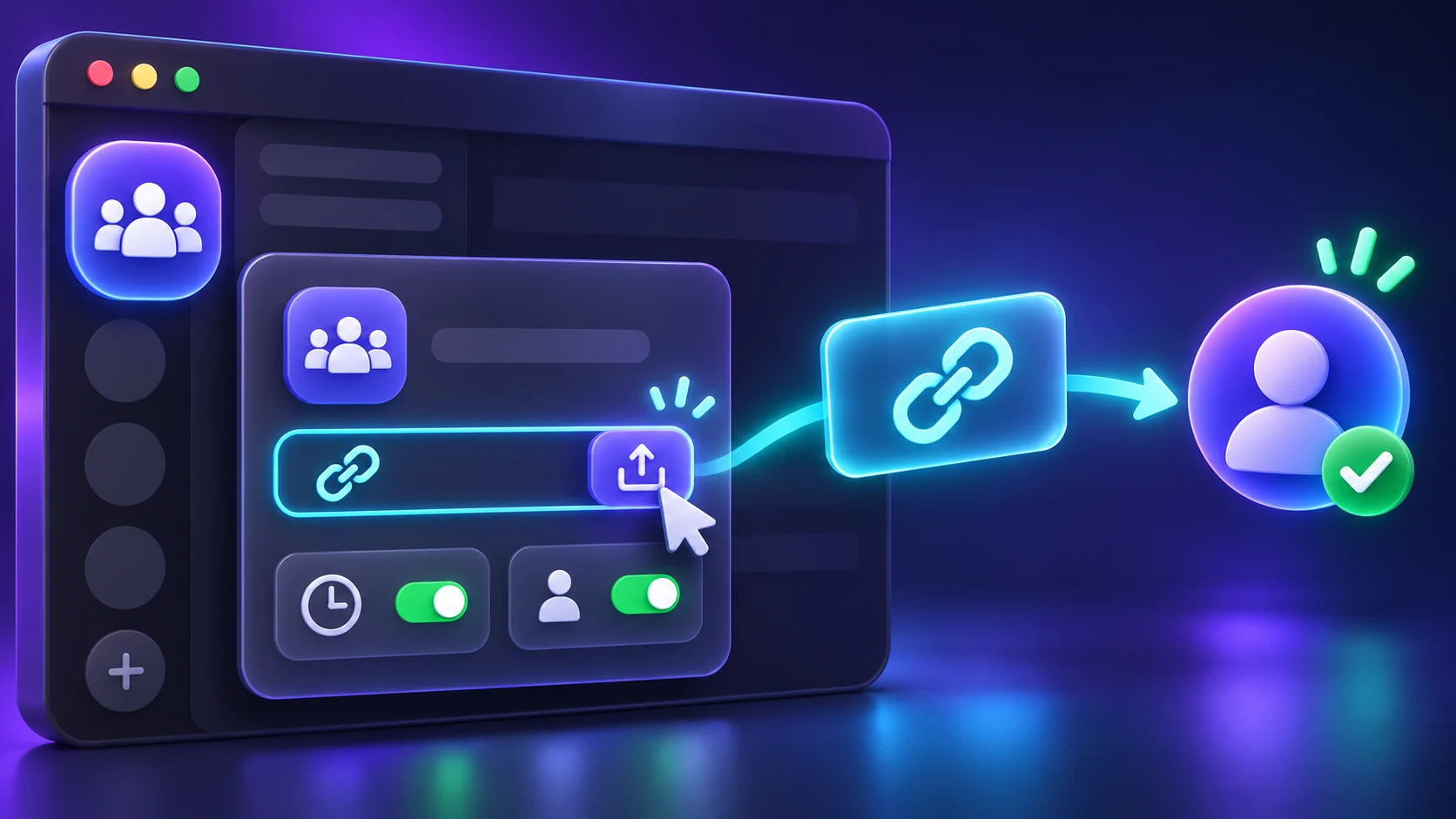
A Discord invite link is a URL that lets another user open a server invite and join when their account, the server, and its permissions allow it. The link can be created from a particular channel, expire after a set time, stop after a set number of uses, or be revoked by an authorized server manager.
Not every member can always create one. Discord’s Create Invite permission can be allowed or denied by role and by channel. If you still need the server itself, start with How to Create a Discord Server.
Quick Invite Setup
- Open the intended server and choose a suitable landing channel.
- Use that channel’s Create Invite or invite control.
- Open Edit Invite Link before sharing it.
- Choose the expiration and maximum-use settings you need.
- Generate the new link after changing its settings.
- Copy or share the new invite with the intended people.
- Test the invite preview and server name before publishing it widely.
- Revoke old links when they are no longer needed.
What Is a Discord Invite Link?
An invite contains a unique code that points to a Discord server. Opening it normally shows an invite preview before the user accepts. A valid invite does not bypass a server ban, Discord account limits, or the server’s membership and access rules.
An invite is not a password or account credential. Its own settings determine how long it remains valid, how many times it can be used, and whether it grants temporary membership. Discord’s current Invites 101 guide documents these controls.
How to Create a Discord Invite Link on Desktop or Web
In the desktop app or browser client:
- Open the server and the channel where new members should first arrive.
- Hover over the channel and choose Create Invite, or use the invite control currently shown for that channel.
- Invite a recent contact directly, or choose Copy to copy the generated URL.
- Before sharing it, select Edit Invite Link if you need a different expiration, use limit, or temporary-membership choice.
- Choose Generate a New Link after changing those settings, then copy that new URL.
Button placement can move between client versions, but the durable workflow is channel, Create Invite, edit settings, generate, then copy or share.
How to Create a Discord Invite Link on Mobile
Open the Discord mobile app, select the server, and find the intended channel. Depending on the current iOS or Android layout, long-press the channel or use its visible invite/add-member control, then choose Invite.
Copy the link, share it through the system share sheet, or open the invite’s advanced settings before generating it. Discord’s official iOS invite guide uses a channel long-press; Android placement may differ, so follow the Invite control shown in the current app rather than an old screenshot.
How to Change Invite Expiration
Open Edit Invite Link and use Expire After to choose one of the durations Discord currently offers. Discord’s documentation describes seven days as the usual default, but server type and previous choices can affect what appears. Check the editor instead of assuming the link is permanent.
After changing the setting, generate and share the new link. Do not assume that editing the panel changes every old invite already issued; review old links separately under Server Settings.
How to Limit the Number of Uses
In Edit Invite Link, set Max number of uses to the available limit that fits the audience. No limit removes the usage cap, while a numbered limit stops the link after that many successful uses.
Usage and time limits are independent. A link can still expire before all uses are consumed, and a no-limit link can still expire, be revoked, or be paused.
How to Make a Permanent Discord Invite
Permanent behavior now depends on the server type. Discord currently documents new Friend Server invites as lasting up to 30 days, while Community Server invites can be non-expiring. If Never appears under Expire After, select it and generate a new link. Use No limit as well if the link should be reusable rather than capped.
If Never is unavailable, do not try to bypass the server’s limit. Generate a new invite when the current one expires or, if Community features genuinely suit the server, review Discord’s current server-type explanation. Older non-expiring Friend Server links may continue to work, but that does not guarantee the option for a new link.
Never-expiring does not mean impossible to disable. An authorized manager can still revoke the invite, and eligible Community servers can pause invites.
How to Make a Discord Invite for Only One Person
Set Max number of uses to 1, generate a new link, and send it privately. Discord supports a one-use limit, but the link is not cryptographically assigned to one named account. Whoever successfully redeems it first consumes the use.
Do not post a one-use link in a public place. If the intended person reports that it is already invalid, inspect its use count and create a fresh one rather than raising the limit unnecessarily.
How to Make a Temporary Invite
Enable Grant temporary membership in the invite editor if Discord shows it. Discord says a member who joins through that invite is automatically removed when they disconnect unless a role has been assigned to them.
Use this for genuinely temporary access and explain the behavior to the guest. Assigning a role changes the outcome, so do not treat the option as a guaranteed timed removal after a fixed number of minutes.
What Channel Does a Discord Invite Open?
The channel used to create the invite provides the new member’s initial server context. Create a general invite from a visible welcome, rules, or start-here channel rather than a busy voice room or staff area.
The invite does not override channel permissions. A member still sees only the channels their roles and overrides allow. Review how private channel access works before sharing a server invite broadly.
Who Can Create Discord Invite Links?
The server owner and members with Create Invite in the relevant channel can create links. That permission may come from @everyone, another role, or a channel override. A channel-specific denial can prevent invite creation even when another part of the server allows it.
Members do not need Administrator merely to create an invite. Grant the narrow permission only where it is needed. See Discord Permissions Explained for the interaction between server roles and channel overrides.
How to Stop Members From Creating Invite Links
Open the server’s role settings and turn off Create Invite for @everyone and ordinary member roles. Then inspect important channel and category overrides so none restores that permission unexpectedly. If a trusted team needs invites, allow Create Invite only for a purpose-based role and the appropriate channels.
Do not grant Administrator as a shortcut. If you need a dedicated inviter or moderator role, follow How to Create and Manage Discord Roles.
Removing Create Invite prevents new links; it does not revoke active links created earlier. Review and delete those separately.
How to View Existing Discord Invites
An authorized server manager can open Server Settings > Invites to review active invite codes. Discord can show details such as the creator, use count, and expiration information where available in the current client.
If the page or details are unavailable, you may lack the required server-management access. Ordinary members are not entitled to inspect every active invite simply because they can create one in a channel.
How to Revoke or Delete a Discord Invite
Open Server Settings > Invites, find the specific link, and use its delete or revoke control. Confirm the action carefully: Discord says a deleted invite code cannot be recreated, even by Support.
Only that invite becomes unusable. Other active links remain valid according to their own settings, so review the complete list rather than assuming one deletion closes every entry point.
What Happens After an Invite Is Revoked?
Anyone opening that code can no longer join through it. People who already used the invite are not automatically removed from the server, because deleting an invite and removing a member are separate actions.
If an existing member should leave, use the appropriate native moderation action and server rules. Never treat invite revocation as a ban or a substitute for member management.
Why Is My Discord Invite Link Not Working?
Use this short troubleshooting flow:
- Copy the complete link again and preserve the invite code’s capitalization.
- Ask an authorized manager to check Server Settings > Invites.
- Confirm that the link has not expired, reached its use limit, or been revoked.
- For a Community server, check whether invites are paused.
- Generate a fresh invite from a channel where the creator has Create Invite.
- If every valid link fails for one account, consider that account’s server limit or a ban from the server.
Discord’s Invalid Invite Links guide also lists unknown or mistyped codes, account server limits, and bans. Do not try to bypass a ban; contact the server’s staff if you believe it is a mistake.
An expired invite reached its configured time limit. A revoked invite was deliberately deleted. A used-up one-use link may also appear invalid even though its clock had not expired. The visible error does not always identify the exact cause, so the server’s invite list is the best check.
Can Someone Reuse the Same Discord Invite Link?
Yes, if it is still active and has uses remaining. A no-limit invite can be shared repeatedly until it expires, is revoked, or is paused. A one-use link stops after its first successful redemption, while another numbered limit stops at that count.
Reuse is a configuration choice, not proof that a link is permanent. Review both expiration and maximum uses.
Can Discord Invite Links Be Dangerous?
A normal invite URL is an invitation, not executable code. Still, confirm the server name and preview, who sent the link, and where the URL leads. Be cautious if a message redirects through an unrelated site, imitates Discord sign-in, or asks you to paste code.
Joining never requires sharing an account token, password, backup code, or 2FA code with another person. Avoid unofficial clients, console scripts, self-bots, invite-spam tools, and mass-DM services.
Discord Invite Link vs Custom Invite Link
A normal invite uses a generated code and follows its expiration and use settings. A Custom Invite Link uses a memorable server-chosen code. Discord currently offers it as a Level 3 Server Boost perk, with limited additional-perk experiments for some servers; it is not available to every server or every Community server.
Custom describes the code, not an unlimited lifetime. Boost eligibility and Discord’s requirements still apply. A standard non-expiring Community invite and a Custom Invite Link are different features. Discord’s Custom Invite Link guide documents current eligibility.
Can I See Who Created a Discord Invite?
Authorized server managers can review Server Settings > Invites, where Discord can show who created an active invite along with its use information. This visibility is for server management and may not be available to ordinary members.
If an invite has already been deleted, do not assume its full record will remain in the active-invites list. Keep moderation notes separately when accountability matters.
Common Discord Invite Mistakes
- Leaving the default expiration unchanged and discovering that the link ends sooner than expected.
- Setting a low usage limit for a larger audience.
- Copying an invite from the wrong server or landing channel.
- Generating a replacement but forgetting that an older invite may remain active.
- Assuming revoking an invite removes people who already joined.
- Giving ordinary roles broad Create Invite access without a reason.
- Confusing a non-expiring invite with a Custom Invite Link.
Frequently Asked Questions
How do I create a Discord invite link?
Open the server and intended channel, use Create Invite, review Edit Invite Link if needed, generate the link, then copy or share it.
How do I make a Discord invite never expire?
Select Never under Expire After if the server offers it. Discord currently reserves non-expiring new invites for Community Servers; new Friend Server invites are time-limited.
Can I limit a Discord invite to one use?
Yes. Set Max number of uses to 1. The first successful user consumes it; the link is not reserved for one named account.
Why does my Discord invite say invalid?
It may be mistyped, expired, used up, revoked, or paused. An account server limit or server ban can also prevent joining.
Why does my Discord invite expire?
The invite reached the duration chosen under Expire After. Generate a new link and choose a longer available duration if appropriate.
Can I revoke a Discord invite link?
Yes. An authorized manager can delete the specific code under Server Settings > Invites, making that link unusable.
Does revoking an invite remove members?
No. It stops future joins through that code. Members who already joined remain until a separate moderation or membership action is taken.
Who can create invite links in a Discord server?
The owner and members with Create Invite in the relevant channel can create links. Role and channel permissions may restrict it.
Can I stop members from creating invites?
Yes. Remove Create Invite from @everyone and ordinary roles, check channel overrides, and revoke old active links separately.
Can one Discord invite be reused?
Yes, while it remains active and has uses left. A one-use invite cannot be reused after its first successful redemption.
Related guides
Continue with another practical explanation from the guide index.
How to Leave a Discord Server
Learn how to leave a Discord server on desktop and mobile, what happens after you leave, how to leave a server you own, and whether you can join again later.
How to Delete a Discord Server
Learn how to delete a Discord server on desktop and mobile, what happens to channels and members, how ownership affects deletion, and what to check before deleting a server permanently.

How to Enable Developer Mode on Discord
Learn how to enable Developer Mode on Discord desktop and mobile, copy user, server, channel, role, and message IDs, and understand what Developer Mode actually does.