How to Make an Announcement Channel on Discord
Learn how to create an Announcement Channel on Discord, configure permissions, publish updates, let other servers follow announcements, and fix common setup problems.
On this page
A Discord Announcement Channel is a special text channel for server news, updates, release notes, events, and other information that people may want to receive in another server. Staff write messages in the source channel, then choose which individual messages to publish to followers.
It is not the same as a normal text channel named #announcements, and it is not automatically read-only. Announcement is a channel type available to Community servers; read-only access is a separate permission setup that controls who can post.
What Is a Discord Announcement Channel?
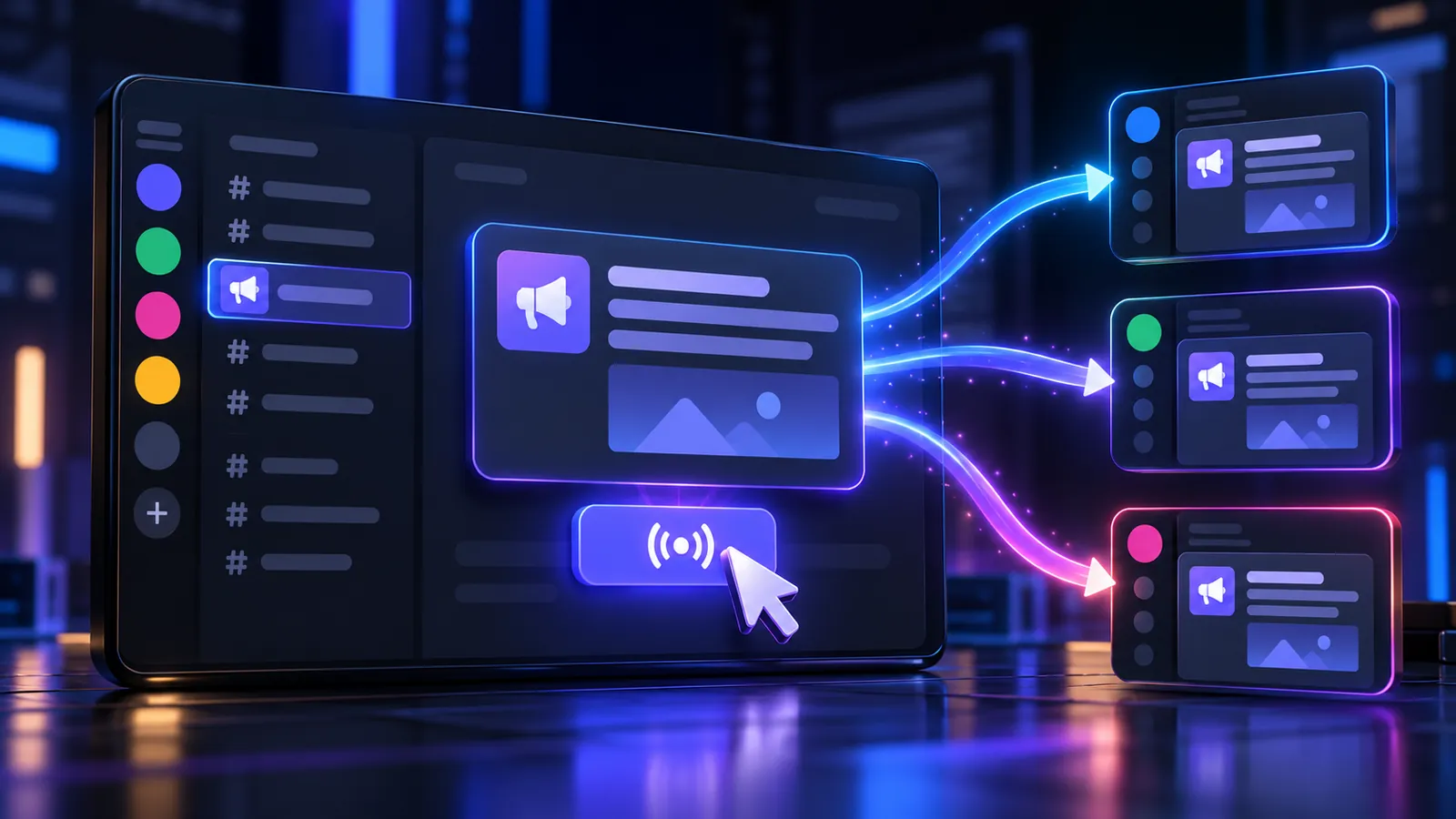
An Announcement Channel has Discord’s publishing and Channel Following features. Discord marks it with a megaphone icon and provides a Follow control. When an authorized person publishes a message, Discord can distribute a copy to channels in servers that follow the source.
Posting and publishing are separate. A message first appears normally in the source channel. It reaches followers only after someone uses Publish on that message. This makes the channel useful for selected public updates without sending every draft, correction, or staff note outside the server.
Older articles may call this a News Channel. Discord’s current interface uses Announcement Channel; developer documentation calls the type GUILD_ANNOUNCEMENT and calls publishing a crosspost.
Requirements for Creating an Announcement Channel
The source server must have Community enabled. Discord’s current Announcement Channel FAQ explicitly lists this requirement.
If Community is off, open the server settings and complete Discord’s Community setup first. That setup includes required safety settings, a rules or guidelines channel, a designated channel for Community updates, and agreement with Discord’s Community rules. Turning a server into a Community server does not make every channel public.
You also need Manage Channels to create a channel or change an existing text channel’s type. Do not grant Administrator as a shortcut; it grants every permission and bypasses normal channel restrictions.
How to Create an Announcement Channel
Discord’s documented workflow is:
- Open the server and use the channel-creation control in the category where the channel should appear.
- Choose Announcement as the channel type.
- Enter a clear name, such as
updates,release-notes, orserver-news. - Create the channel.
- Open its permissions and decide who may view, post, and publish.
- Send a harmless test message, publish it, and verify the result with a controlled destination before using the channel for important news.
Discord’s current support steps use desktop-style hover controls. The underlying channel and permission rules do not change by device, but mobile menu placement can differ and Discord does not publish a separate current mobile setup path. If the mobile app does not show the channel type, conversion toggle, or publishing control, use the desktop app or browser rather than relying on an old tap-by-tap guide.
How to Turn an Existing Text Channel Into an Announcement Channel
You can convert an existing text channel instead of replacing it:
- Open the text channel’s settings.
- Find the Announcement Channel option and turn it on.
- Save the change.
- Review the existing permission overrides before publishing anything.
Discord supports conversion between a normal text channel and an Announcement Channel. Renaming a channel to announcements does not convert it; the special type, megaphone icon, and publishing controls are what matter.
How to Publish an Announcement
Write and send the update in the Announcement Channel, then use Publish on that specific message and confirm the action. A normal send keeps the message local; publishing distributes it to configured followers.
Discord says Send Messages lets a member publish their own messages. A person who needs to publish a message written by someone else also needs Manage Messages. This distinction supports a useful review process: authors can publish their own work, while a smaller editorial role can publish any approved message.
Discord officially limits publishing to 10 publishes per hour. Its support page does not define that limit as per user, channel, or server, so do not build a workflow around an assumed scope. If Discord shows the rate-limit error, wait instead of repeatedly retrying.
What Happens When You Publish a Message?
The original remains in the source Announcement Channel. Following destinations receive a regular-looking copy through a Channel Follower webhook. Discord says embeds, images, video, emoji, and spoiler formatting are carried across, while role mentions are removed, including @everyone and @here.
Editing the source message updates followed copies. Deleting it removes the original content from those copies but leaves an Original Message Deleted notice. An Announcement Channel cannot receive posts from another Announcement Channel, so choose a normal eligible text channel as the following destination.
Discord does not publish a delivery-time guarantee. Treat Channel Following as distribution for updates, not as a guaranteed instant emergency-alert system, and do not assume every follower will see every post immediately.
How to Let Another Server Follow Your Announcement Channel
Making the channel an Announcement Channel supplies its Follow capability; there is no separate auto-publish switch for all messages. People who can access the channel can use its Follow control, subject to the permissions and destinations Discord offers them.
Keep the source channel easy to identify, limit posting to trusted roles, and publish only finalized messages. Followers receive only the messages staff deliberately publish, not the channel’s complete history or every new post.
How to Follow Another Server’s Announcement Channel
Open the source Announcement Channel, choose Follow, then select the server and normal text channel where published updates should arrive. Confirm the selection after checking that it is the intended destination.
You need Manage Webhooks in the destination. Discord only shows servers and channels where you have that permission. Following creates a Channel Follower webhook, which authorized staff can later move, rename, edit, or remove under Server Settings > Integrations > Channels Followed.
Discord’s support page frames Channel Following around Community-enabled servers, while its current follow API documents Manage Webhooks without a destination Community requirement. If an otherwise eligible destination is missing, verify Manage Webhooks first, then check the destination server’s Community status and the controls available in the current client.
Announcement Channel Permissions
Use Discord Permissions Explained before changing a complex setup. The important permissions are:
- View Channel controls who can see the source channel.
- Send Messages controls who can post and lets a member publish their own messages.
- Manage Messages, together with Send Messages, lets trusted staff publish messages written by other people.
- Manage Channels allows creation, conversion, and channel configuration.
- Manage Webhooks is required in a destination to follow another server’s channel.
Start with @everyone, then review assigned roles, channel overrides, and any member-specific overrides. A higher role does not universally win, and a Deny does not universally override every later permission layer. Administrator bypasses ordinary channel restrictions, which is why testing only as an administrator can hide mistakes.
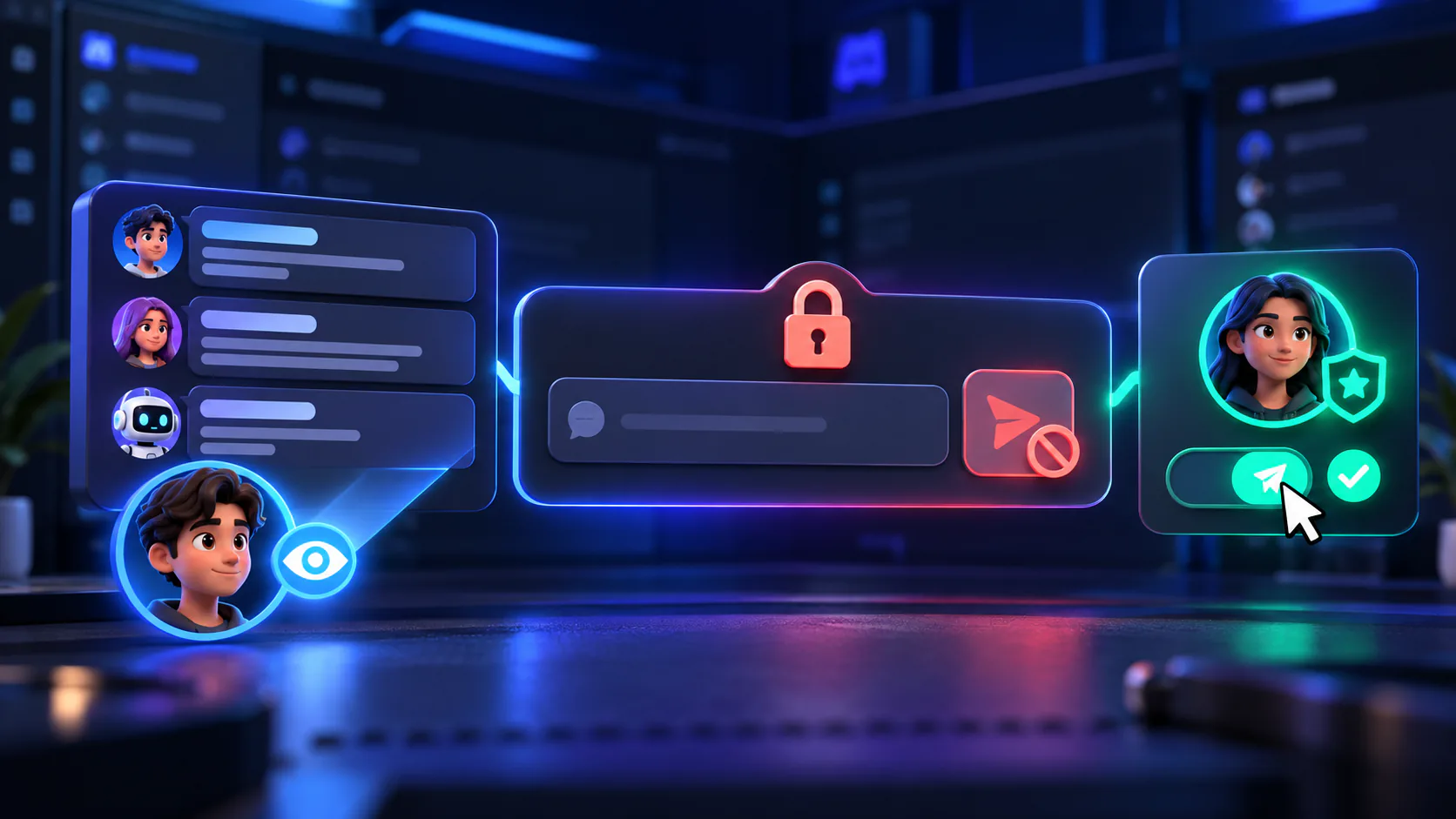
How to Make an Announcement Channel Read-Only
An Announcement Channel does not become read-only automatically. To let normal members read while selected staff post:
- Keep View Channel available to @everyone or the intended audience.
- Deny Send Messages for @everyone in that channel.
- Add the staff role and allow Send Messages.
- Give Manage Messages only to reviewers who must publish other authors’ posts.
- Test with both an ordinary member and a non-administrator staff member.
The full permission pattern is covered in How to Make a Discord Channel Read Only.
How to Create a Staff-Only Announcement Workflow
Create purpose-based Author and Publisher roles, or use one small communications role if the team is simple. Authors need View Channel and Send Messages. Publishers who approve other people’s posts also need Manage Messages. Keep Manage Channels and Manage Webhooks limited to staff whose duties actually require them.
Draft sensitive copy in a private staff channel, approve it, then post the finished version in the Announcement Channel and publish once. Document who checks links, dates, mentions, and attachments. How to Create and Manage Discord Roles explains how to keep those roles narrow and auditable without unnecessary Administrator access.
Announcement Channel vs Other Channel Setups
Announcement Channel vs Read-Only Channel
A read-only channel controls who can post. An Announcement Channel adds publishing and following. One channel can use both concepts: make it the Announcement type, then deny Send Messages to normal members while allowing a staff role.
Announcement Channel vs Normal Text Channel
A normal text channel supports ordinary local conversation. It cannot publish through Channel Following merely because it is named news or made read-only. Convert it to the Announcement type when cross-server distribution is actually needed.
Announcement Channel vs Forum or Other Alternatives
Use a forum channel for organized, topic-based discussion. Use a normal read-only text channel for local notices that never need followers. Use an Announcement Channel when controlled, publishable cross-server updates are the defining requirement.
Common Uses for Announcement Channels
Good uses include product or server updates, event announcements, rule changes, maintenance notices, community news, release notes, and changelogs. Keep one clear editorial purpose per channel so followers know what they are subscribing to.
Why Can’t I Create an Announcement Channel?
Check these causes in order:
- Community is not enabled or its setup was not completed.
- Your account lacks Manage Channels.
- You are editing a channel type that cannot be converted like a normal text channel.
- You are in the wrong server or changing a category instead of a channel.
- The current mobile client does not expose the desktop-documented control.
Use Discord’s native server and channel settings. Do not use scripts, browser-console commands, unofficial clients, shared tokens, passwords, or 2FA codes to force the feature.
Why Don’t I See the Publish Option?
Confirm that the source is truly an Announcement Channel, not a normal text channel with a similar name. For your own message, you need Send Messages; to publish someone else’s message, you also need Manage Messages. Discord also says a forwarded message cannot itself be published from an Announcement Channel.
If the control is missing only on mobile, check desktop or web. If Discord shows an error rather than hiding the option, you may have reached the documented 10-publishes-per-hour limit.
Can Anyone Post in an Announcement Channel?
No. Posting is controlled by View Channel, Send Messages, and the channel’s role or member overrides. If @everyone has Send Messages, ordinary members may post. Deny it for @everyone and allow it only for a trusted role when the channel should be staff-written.
Can Announcement Channels Be Private?
Yes. View Channel still controls visibility, so selected roles or members can be allowed while @everyone is denied. However, publishing is designed to send a copy outside the source channel to existing follower destinations. Do not publish confidential material, and do not treat source-channel privacy as a promise that a published message stays inside that audience.
Common Announcement Channel Mistakes
- Assuming every text channel can publish without being converted
- Forgetting the source server’s Community requirement
- Giving too many roles Send Messages or Manage Messages
- Confusing a read-only setup with the Announcement channel type
- Assuming every posted message is published automatically
- Expecting every follower to receive or notice every update instantly
- Selecting the wrong destination when following another server
- Trying to use an Announcement Channel as a following destination
- Granting Administrator to solve a narrow permission problem
Frequently Asked Questions
What is a Discord Announcement Channel?
It is a special Community-server text channel that can publish selected messages to normal channels in servers that follow it.
How do I create an Announcement Channel?
Enable Community, use the channel-creation control, choose Announcement as the type, name the channel, create it, and then configure its permissions.
Do I need a Community server for Announcement Channels?
Yes. Discord currently requires Community to be enabled on the source server before it can create or convert an Announcement Channel.
Can normal members post in an Announcement Channel?
Only if their effective permissions include Send Messages. Deny that permission for @everyone and allow a staff role when members should only read.
How do I publish a Discord announcement?
Send the message in the Announcement Channel, use Publish on that specific message, and confirm. Sending alone does not distribute it to followers.
Why can't I see the Publish option?
The channel may be a normal text channel, your permissions may be insufficient, the message may be a forwarded message, or the current mobile interface may not expose the documented desktop control.
Can another Discord server follow my announcements?
Yes. An authorized user can choose Follow in your Announcement Channel and select an eligible destination where they have Manage Webhooks.
Can I make an Announcement Channel read-only?
Yes. Keep View Channel available, deny Send Messages for ordinary members, and allow it only for the staff role that should post.
Can an Announcement Channel be private?
Yes. View Channel controls source visibility, but anything deliberately published can be distributed to follower destinations, so never publish confidential content.
What is the difference between an Announcement Channel and a normal text channel?
An Announcement Channel has Publish and Follow functionality. A normal text channel stays local even if it is named announcements or configured as read-only.
Related guides
Continue with another practical explanation from the guide index.

How to Transfer Discord Server Ownership
Learn how to transfer ownership of a Discord server safely, what changes after the transfer, what permissions the new owner receives, and what to check before handing over control.

How to Set Up Discord AutoMod
Learn how to set up Discord AutoMod, create keyword and spam rules, choose moderation actions, configure exemptions, and test your server settings safely.
How to Make a Discord Channel Read Only
Learn how to make a Discord channel read only, control who can send messages, configure role permissions, and avoid common permission mistakes.